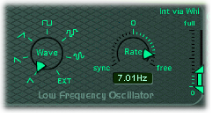

The LFO (low frequency oscillator) generates an adjustable, cyclic waveform that you can use to modulate other ES1 parameters.
LFO parameters
Wave knob: Set the LFO waveform. Each waveform has its own shape, providing different types of modulation.
You can choose the following waveforms: triangle; ascending and descending sawtooth; square wave; sample & hold (random); and a lagged, smoothly changing random wave.
You can also choose EXT to assign a side-chain signal as a modulation source. Choose the side-chain source channel strip from the Side Chain pop-up menu in the upper-right corner of ES1.
Rate dial and field: Set the speed, or frequency, of the LFO waveform cycles.
If you set values to the right of 0, the LFO phase runs freely.
If you set values to the left of 0, the LFO phase is synchronized with the tempo of Logic Pro X—with phase lengths adjustable between 1/96 bar and 32 bars.
When set to 0, the LFO outputs at a constant, full level, which allows you to manually control the LFO speed with your keyboard’s modulation wheel. This can be useful, for example, if you want to change the pulse width by moving your keyboard’s modulation wheel. You would choose the pulse width as the LFO modulation target, using a button in the left router column, and set the modulation intensity range using the Int via Whl slider.
Int via Whl slider: Set the upper arrow to define LFO intensity at the modulation wheel’s maximum position. Set the lower arrow to define LFO intensity if the modulation wheel is set to 0. The distance between the arrows—shown as a green bar—indicates the range of your keyboard’s modulation wheel.
You can simultaneously adjust the modulation range and intensity by dragging the green bar, thus moving both arrows at once. Note that as you do so, the arrows retain their relative distance from each other.