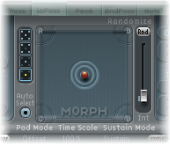

The Morph Pad is in the middle of the lower part of Sculpture’s window. Each corner of the Morph Pad can contain a different setting for a diverse number of parameters. You can cross-fade between these settings and morph the sound by dragging the red ball in the center of the Morph Pad.
To start, Control-click the Morph Pad, then choose Paste to all Points from the shortcut menu to copy the current setting into all four corners of the Morph Pad. (If Paste to all Points is unavailable, first choose Copy selected Point.)
Drag the ball to one corner to select the corresponding partial sound, indicated by highlighted arches that appear in the corner.
Adjust several parameters.
Repeat steps 2 and 3 in each corner.
Carefully drag the ball around the Material Pad to find a position where your pad sound takes on a new and interesting character. Also try the extreme corners, for example.
After you choose different settings for the Morph Pad corners, moving the morph ball creates marked sound variations—even though the intermediate stages do not all exhibit a tonal character. You can automate the morphing process by assigning two MIDI controllers to the MorphX and MorphY pop-up menus at Sculpture’s bottom edge. You can also automate the Morph Pad using a recorded envelope (for more information, see Record Morph Envelopes in Sculpture).
On each side of the Morph Pad there is a randomizing feature that randomly varies sounds to a chosen intensity level, or amount of randomization. This is especially useful for subtle changes to natural sounds, but it can also provide for rewarding variations to synthesized sounds as well.
Select one of the squares on the left side of the Morph Pad to determine the number of corners that are to be varied.
To adjust the intensity of the random deviations, drag the slider on the right side of the Morph Pad.
Click the Rnd button at the top of the slider to perform the randomization.
When you next move the morph ball, you’ll hear the variations you just created.