Use Chord Trigger

Chord Trigger is straightforward to use: choose a mode (single or multi), set a chord trigger range, select a trigger key, then set up a chord. You can also transpose chords and quickly assign multiple chords—onscreen or with your MIDI keyboard.

Define the chord trigger range

The shaded chord trigger range is shown on the upper keyboard. Incoming MIDI notes that fall within this range are interpreted as trigger keys that play the chord (Single Chord mode) or the chords (Multi Chord mode) assigned to them. Chords can be assigned to keys within the chord trigger range. Incoming MIDI notes that fall outside the defined chord trigger range are passed through Chord Trigger unaffected. This allows you to play a melody with the right hand while triggering/transposing memorized chords with the left, for example.
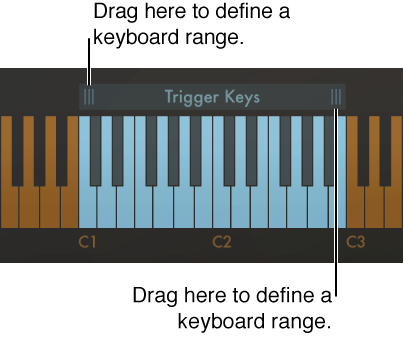
Figure. Action of keyboard range being defined.

Note:  If the chord trigger range is made shorter, memorized chords that fall outside the range become inaccessible but are not deleted. Lengthening the chord trigger range makes assigned chords accessible again.
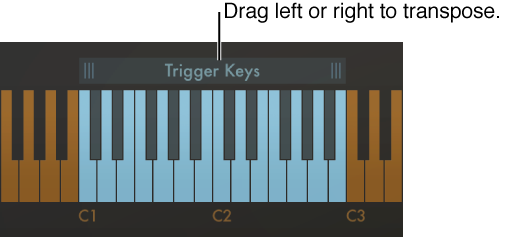
Transpose chords in the chord trigger range (Multi Chord mode only)

You may want to transpose triggered chords in some circumstances. For example, in Multi Chord mode you can move the entire chord trigger range upward by two semitones to change a chord progression in C-Major (starting with the C trigger key) into a progression that plays in D-Major, starting with the D trigger key.

Figure. Action of chord transposition.

Transpose chords by octaves

Assign a chord to a key using the onscreen keyboard

  1. Click the Learn button.

    The Learn button label changes to “Trigger Key” and the button begins to blink.

  2. Click a trigger key—within the chord trigger range—on the upper keyboard.

    The trigger key is set up for chord assignment. The Learn (Trigger Key) button label changes to “Chord.”

  3. Click the note or notes you want to assign to the trigger key on the lower keyboard.

    As you click each note, you hear it and any previously assigned notes in the chord.

    Click assigned notes a second time to unassign or remove them from the chord.

  4. To end chord assignment, click the Learn button.

You can repeat these steps to assign a different chord to each key in the chord trigger range when in Multi Chord mode. In Single Chord mode, only one chord can be learned.

Assign a chord to a key using a MIDI keyboard

It can be faster to use your MIDI keyboard when assigning chords to trigger keys. The Learn process can be started and stopped by playing an assigned note on your MIDI keyboard.

  1. Click the disclosure triangle at the lower left to open the extended parameters.

  2. Choose the MIDI note number you want to use as a remote control for the Learn button from the Learn Remote pop-up menu.

    Choose Off if you no longer want to use a MIDI note as the Learn button remote control.

  3. Play the note selected as the Learn button remote control on your MIDI keyboard.

    The Learn button label changes to “Trigger Key” and the button begins to blink.

  4. Play a trigger key—within the chord trigger range—on your MIDI keyboard.

    This enables the trigger key for chord assignment. The Learn (Trigger Key) button label changes to “Chord.”

  5. Play the note or notes you want to assign to the trigger key on your MIDI keyboard.

    As you play each note, you hear it and any previously assigned notes in the chord.

    Play assigned notes a second time to unassign or remove them from the chord.

  6. Play the note selected as the Learn button remote control on your MIDI keyboard to end chord assignment.

You can repeat steps 3–6 to assign a different chord to each key in the chord trigger range when in Multi Chord mode. In Single Chord mode, only one chord can be learned.

Clear a chord assignment

  1. Click the Clear button.

    • In Single Chord mode: The assigned chord is erased.

    • In Multi Chord mode: The button label changes to “Trigger Key” and begins to blink.

  2. Click the trigger key that you want to clear on the upper keyboard.

    The chord assigned to the trigger key is erased and the trigger key is dimmed, indicating that no chord is assigned.

Clear all chord assignments

The following applies only to Multi Chord mode.