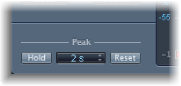

The MultiMeter Peak parameters are used to enable or disable the peak hold function and to reset the peak segments of all meter types. You can also determine a temporary peak hold duration.
MultiMeter Peak parameters
Hold button: Turn on peak hold for all metering tools in the MultiMeter. Choose from:
Analyzer: A small yellow segment above each 1/3-octave level bar indicates the most recent peak level.
Goniometer: All illuminated pixels are held during a peak hold.
Correlation Meter: The horizontal area around the white correlation indicator denotes phase correlation deviations in real time, in both directions. A vertical red line to the left of the correlation indicator shows the maximum negative phase deviation value. You can reset this line by clicking it during playback.
Level Meter: A small yellow segment above each stereo level bar indicates the most recent peak level.
Hold Time pop-up menu: Choose the hold time for all metering tools. Choose 2, 4, or 6 seconds—or infinite.
Note: The (peak) Hold button must be turned on for the selected time value to have an effect.
Reset button: Reset the peak hold segments of all metering tools.
Inter Sample Peak Detection checkbox (Extended Parameters area): Select to detect inter-sample peaks in the signal.