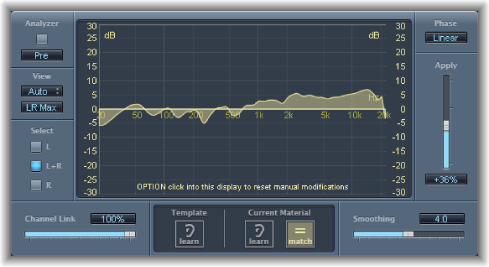

Match EQ offers the following parameters.
Match EQ parameters
Analyzer button: Turn the Analyzer function on or off.
Pre/Post button: Choose whether the Analyzer looks at the signal before (Pre) or after (Post) the filter curve is applied.
View pop-up menu: Set the information shown in the graphic display. Choices are:
Auto: Displays information for the current function, as set with the active button below the graphic display.
Template: Displays the learned frequency curve template for the source file. This is shown in red.
Current Material: Displays the frequency curve for the audio learned as current material. This is shown in green.
Filter: Displays the filter curve created by matching the template and the current material. This is shown in yellow.
View button: Click to determine if separate curves are displayed by the Analyzer. Choose L&R for stereo or LRMax to show the summed maximum stereo level. Choose All Cha for surround or Cha Max to show the summed maximum surround level.
Note: The View parameters are disabled when you use the effect on a mono channel.
Select buttons: Apply changes to the filter curve (created by matching the template with the current material) to the left (L), right (R), or both channels (L+R).
Note: The Select parameters are disabled when you use the effect on a mono channel.
Select pop-up menu (Surround instances only): Choose an individual channel or all channels. Changes to the filter curve affect the chosen channel when a single channel is selected.
Channel Link slider and field: Refine settings made with the Select buttons or Select pop-up menu.
When set to 100%, all channels (L and R for stereo, or all surround channels) are represented by a common EQ curve.
When set to 0%, a separate filter curve is displayed for each channel (chosen with the Select buttons or Select pop-up menu).
Settings between 0 and 100% blend these values with your filter curve changes for each channel. This results in a hybrid curve.
Note: The Channel Link parameters are disabled when you use the effect on a mono channel.
LFE Handling buttons (Extended Parameters area): In surround instances, click to process or bypass the LFE channel.
Graphic display: Displays the filter curve created by matching the template to the current material. You can edit the filter curve (see Edit the Match EQ filter curve).
Template Learn button: Start or stop the process of learning the frequency spectrum of the source file.
Current Material Learn button: Start or stop the process of learning the frequency spectrum of the project you want to match with the source file.
Current Material Match button: Match the frequency spectrum of the current material to that of the template (source) file.
Phase pop-up menu: Choose the operational principle of the filter curve.
Linear: Prevents processing from altering the signal phase, but latency is higher.
Minimal: Alters the signal phase (slightly), but latency is reduced.
Minimal, Zero Latency: Adds no latency, but has a higher CPU overhead than the other options.
Apply slider and field: Determine the impact of the filter curve on the signal.
Values above 100% magnify the effect.
Values below 100% reduce it.
Negative values (−1% to −100%) invert the peaks and troughs in the filter curve.
A value of 100% has no impact on the filter curve.
Smoothing slider and field: Set the amount of smoothing for the filter curve, using a constant bandwidth set in semitone steps. A value of 0.0 has no impact on the filter curve. A value of 1.0 means a smoothing bandwidth of one semitone. A value of 4.0 means a smoothing bandwidth of four semitones (a major third). A value of 12.0 means a smoothing bandwidth of one octave, and so on.
Note: Smoothing has no effect on any manual changes you make to the filter curve.
Fade Extremes checkbox (Extended Parameters area): Select to smooth the filter curve at the high and low extremes of the frequency spectrum.