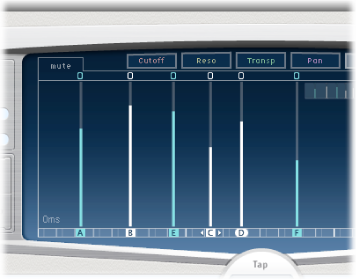

There is always at least one selected tap. You can easily distinguish selected taps by color—the Toggle bar icons and the Identification bar letters of selected taps are white.
You can move a tap backward or forward in time or completely remove it.
Note: When you move a tap, you are actually editing its delay time.
Do one of the following:
Click a tap in the Tap display.
Click the tap letter in the Identification bar.
Click one of the arrows to the left of the Tap name to select the next or previous tap.
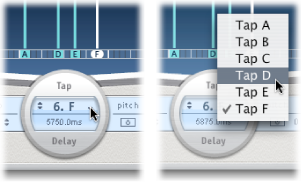
Choose the tap letter from the pop-up menu to the right of the Tap name.
Do one of the following:
To select multiple taps: Drag across the background of the Tap display.
To select multiple nonadjacent taps: Shift-click specific taps in the Tap display.
In the Identification bar, drag a tap to the left to go forward in time, or to the right to go backward in time.
This method also works when more than one tap is selected.
Note: Editing the Delay Time parameter in the Tap Delay field of the Tap parameter bar also moves a tap in time. For more details about the Tap Delay field and editing taps, see Delay Designer Tap parameter bar.
Do one of the following:
Select a tap, then press the Delete key.
In the Identification bar, drag a tap letter downward, out of the Tap display.
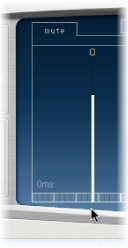
This method also works when more than one tap is selected.
Control-click (or right-click) a tap, then choose “Delete tap(s)” from the shortcut menu.