Space Designer global parameters affect the overall output or behavior of the plug-in. See Space Designer global parameters overview.
The tasks below cover the use of Space Designer’s global parameters.
The Input slider behaves differently in stereo to stereo and surround configurations. (The slider does not appear in mono or mono to stereo instances of the effect.)
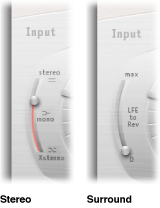
In stereo instances: Drag the Input slider to determine how a stereo signal is processed.
Stereo setting (top of slider): The signal is processed on both channels, retaining the stereo balance of the original signal.
Mono setting (middle of slider): The signal is processed in mono.
XStereo setting (bottom of slider): The signal is inverted, with processing for the right channel occurring on the left, and vice versa.
In-between positions: A mixture of stereo to mono crossfeed signals is produced.
In surround instances: Drag the Input slider to determine how much LFE signal is mixed with the surround channels routed into the reverb.
Surround Max setting (top of slider): The maximum amount of Low Frequency Effects (LFE) signal is mixed with the other surround channels.
Surround 0 setting (bottom of slider): The entire LFE signal is passed through the reverb unprocessed.
In-between positions: A mixture of LFE and surround channel information is processed.

The complex calculations made by Space Designer take a small amount of time, which results in a processing delay, or latency, between the direct input signal and the processed output signal.
Note: This compensation feature is not related to latency compensation in the host application; it occurs entirely within Space Designer.
Click the Latency Compensation button to turn it on, which delays the direct signal in the Output section so that it matches the processing delay of the effect signal.

Space Designer’s processing latency is 128 samples at the original sample rate, and it doubles at each lower sample rate division. The processing latency increases to 256 samples if you set Space Designer’s sample rate slider to “/2.” Processing latency does not increase in surround mode or at sample rates above 44.1 kHz.
The Definition parameter emulates the diffusion of natural reverb patterns. When used at values of less than 100% it also reduces CPU processing requirements.
Natural reverbs contain most of their spatial information in the first few milliseconds. Toward the end of the reverb, the pattern of reflections—signals bouncing off walls, and so on—becomes more diffuse. In other words, the reflected signals become quieter and increasingly nondirectional, containing far less spatial information. To emulate this phenomenon, use the full impulse response resolution only at the onset of the reverb, then use a reduced impulse response resolution toward the end of the reverb.

Drag either of the Definition fields vertically to set the crossover point—where the switch to the reduced impulse response resolution occurs.
The first Definition field is shown as a percentage, where 100% is equal to the length of the full resolution impulse response. The second field is shown in milliseconds, which indicate the exact crossover point position. (These two fields are linked, so making a change in one automatically changes the other.)
Note: The Definition fields are visible below the main display only when you have loaded CPU-intensive synthesized impulse responses.
The reverb volume compensation feature attempts to match the perceived—not the actual—volume differences between impulse response files. The rev vol compensation button is turned on by default and should generally be left in this mode, although it may not work with all types of impulse responses.

If you have an impulse response that is of a different level, turn off reverb volume compensation and adjust input and output levels accordingly.
Predelay is the amount of time that elapses between the original signal and the initial early reflections of the reverberation. For a room of any given size and shape, predelay is determined by the distance between the listener and the walls, ceiling, and floor. Space Designer allows you to adjust this parameter over a greater range than what would be considered natural.
To set a suitable predelay time, rotate the Pre-Dly knob.
The ideal predelay setting for different sounds depends on the properties of—or more accurately, the envelope of—the original signal. Percussive signals generally require shorter predelays than signals where the attack fades in gradually, such as strings. A good rule of thumb is to use the longest predelay possible before undesirable side effects, such as an audible echo, begin to materialize.
In practice, an extremely short predelay tends to make it difficult to pinpoint the position of the signal source. It can also color the sound of the original signal. On the other hand, an excessively long predelay can be perceived as an unnatural echo. It can also divorce the original signal from its early reflections, leaving an audible gap between the original and reverb signals.
These guidelines are intended to help you design realistic-sounding spaces that are suitable for various signals. If you want to create unnatural sound stages or otherworldly reverbs and echoes, experiment with the Pre-Dly parameter.
Using the IR Start parameter affords a number of other options that can be quite creative, particularly when combined with the Reverse function. See Space Designer button bar.
Note: The IR Start parameter is neither available nor necessary in Synthesized IR mode, because the Length parameter provides identical functionality.
Rotate the IR Start knob to shift the playback start point of the impulse response.
This effectively cuts off the beginning of the impulse response, which can be useful for eliminating level peaks at the start of the impulse response sample.