
You can turn text, text boxes, images, shapes, lines, arrows, and videos into links that you can click during a presentation to open webpages or email message windows, or jump to other slides. Objects that have links appear just like normal objects in your presentation.
As you type text in a text box or shape, Keynote automatically detects valid web addresses (URLs) and email addresses. (The address must be followed by a space, tab, or return character, or one of many punctuation symbols, including quotation marks, parentheses, and brackets.) URLs and email addresses become active and are underlined to indicate that they’re links.
If you don’t want Keynote to automatically detect links, you can turn off automatic link formatting.
Control-click an object or text box, or select text you want to turn into a link, then choose Add Link.
Choose a link destination or action:
Slide: Select the slide you want to link to. To verify the destination, click Go To Slide to jump to that slide.
Webpage: Links to a webpage in a browser. Type the URL for the webpage in the Link field. To verify what you typed, click Go to Page to open the webpage.
Email: Opens an email message with the address and subject you enter. Click Go to Email to see a preview of the message.
Click outside the dialog to dismiss it.
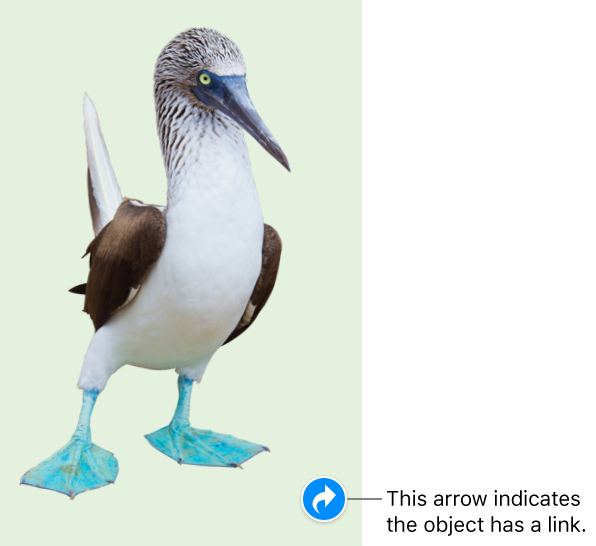
Linked text is underlined, and a link icon (it looks like a curved arrow) appears next to objects that are linked. The icon doesn’t show when you play your presentation.
You can remove a link without affecting the related text or object on the slide.
Click the linked text or the link icon on a linked object, then make your changes or click Remove.
If you don’t want Keynote to format website URLs and email addresses as active links, you can turn off automatic formatting.
Choose Keynote > Preferences (from the Keynote menu at the top of your screen).
Click Auto-Correction at the top of the preferences window.
In the Formatting section, deselect the “Automatically detect links” checkbox.
The setting applies to all Keynote presentations. Existing links aren’t affected by the change.
You can set up your slideshow to be an interactive presentation that changes slides when the viewer clicks its links. An interactive, links-only presentation is especially useful in a kiosk setting.