
You can include mathematical expressions and equations as objects on a slide in your presentation. To add an equation, you compose it in the Keynote equation dialog using LaTeX commands or MathML elements, then insert it into your presentation.
Note: If you’ve installed MathType 6.7d (or later), an application for composing math expressions, you can use it to create equations by clicking symbols and typing in the MathType window.
Choose Insert > Equation (from the Insert menu at the top of your screen).
If you have MathType installed, a dialog appears asking whether to use Keynote to create the equation; click Use Keynote.
Enter an equation in the field using LaTeX commands or MathML elements.
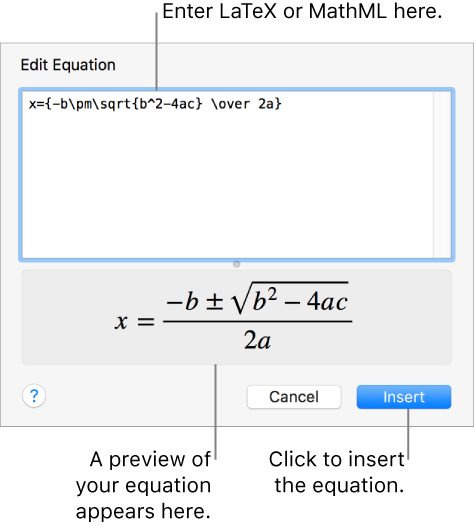
For information on using supported LaTeX commands or MathML elements and attributes, see the Apple Support article About LaTeX and MathML support.
Click Insert.
Drag the equation to reposition it on the slide.
Note: Equations in Keynote can’t be inserted inline with slide text or in table cells.
If you have MathType 6.7d (or later) installed, you can use it to add equations to your presentation.
Tip: To set MathType as the default equation editor, choose Keynote > Preferences (from the Keynote menu at the top of your screen), click General, then select “Insert and edit equations with MathType.”
Choose Insert > Equation (from the Insert menu at the top of your screen).
If you set MathType as your default equation editor, MathType opens automatically (after the first time you enter an equation). Otherwise, click Use MathType in the dialog that appears.
To enter the equation, click symbols and type in the MathType window.
For instructions on using the MathType tools, see MathType Help.
To save the equation, choose File > Close and Return to Keynote (from the File menu at the top of your screen), then click Yes in the dialog that appears.
Drag the equation to reposition it on the slide.
To edit the equation, double-click the equation to open the MathType window.
After you add an equation, you can modify it.
Edit an equation: Double-click the equation, make your changes, then click Update.
Move an equation: Click the equation, then drag it from the center to a new location on the slide.
Change the size or color of an equation: Click the equation, then use the controls in the sidebar on the right to change the font size, color, or alignment of the equation. If you don’t see the sidebar, click  in the toolbar. You can also click a white handle around the equation and drag to change its size.
Copy an equation: Click the equation, choose Edit > Copy (from the Edit menu at the top of your screen), then choose Edit > Paste. Drag the copy to a new location on the slide.
Delete an equation: Click the equation, then press Delete on your keyboard.