
If you have a Chinese, Japanese, or Korean keyboard enabled for your Mac or iOS device, you can apply phonetic guides to words written in any language even if you don’t use any of these keyboards.
If you have a Chinese, Japanese, or Korean keyboard enabled for your Mac or iOS device, you can apply phonetic guides to words written in any language even if you don’t use any of these keyboards.
Select the text.
Don’t include any trailing paragraph breaks or punctuation in your selected text.
Control-click the selected text, then choose Phonetic Guide Text from the shortcut menu.
A phonetic guide appears with the selected text.
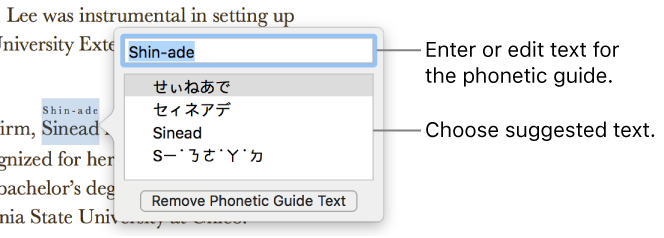
To change the phonetic guide text, choose one of the options in the Phonetic Guide list or type your own in the text field.
Click anywhere outside the Phonetic Guide Text window to apply the text you chose, then close the window.
You can change the language of phonetic guide text or remove the text.
Click the word with phonetic guide text, then choose Phonetic Guide Text from the shortcut menu.
Do one of the following:
Change the guide text: Enter new text, or choose one of the options.
The phonetic options presented depend on which keyboards are enabled.
Remove the guide text: Click Remove Phonetic Guide Text.