
You can assign a shortcut key (F1—F8 on your keyboard) to a paragraph, character, or list style, then use the shortcut key to apply the style to selected text.
Note: To use shortcut keys on a portable computer, press Fn with the shortcut key.
Click any text in the presentation, then in the Format  sidebar, click the Text tab.
Click the Style button near the top of the sidebar.
Do one of the following:
For a paragraph style: Click the paragraph style name at the top of the sidebar, move the pointer over the name of the style you want to assign a shortcut to, then click the arrow that appears.
For a character style: Click the Character Styles pop-up menu, move the pointer over the name of the style you want to assign a shortcut to, then click the arrow that appears.

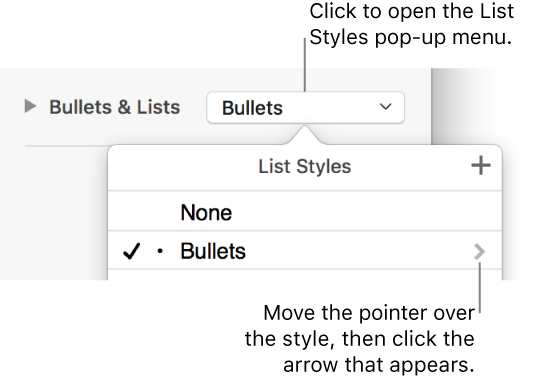
For a list style: Click the Bullets & Lists pop-up menu, move the pointer over the name of the style you want to assign a shortcut to, then click the arrow that appears.
Choose Shortcut, then choose a key.
Now, the shortcut key appears next to the style name in the menu for easy reference.
To remove a shortcut key assignment, follow the steps above, then choose None from the Shortcut menu.