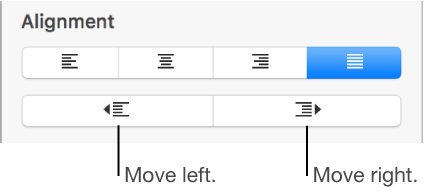
You can align text in a text box, shape, or table cell to the left or right, centered, or justified (aligned on both the left and right).
Align text
Select a text box, a shape with text, or a table cell, row, or column.
Click the Text tab at the top of the sidebar on the right.
If you don’t see a sidebar, or the sidebar doesn’t have a Text tab, click in the toolbar.
Click the Style button near the top of the sidebar, then click the alignment buttons you want.
Set text margins
Text in a text box, shape, or table cell has a default amount of space between the text and the object that contains it. You can adjust that spacing by setting a different margin. You can also indent the first line of paragraphs to create a visual break that helps readers scan text.
Select one or more paragraphs.
Do any of the following:
In the ruler, drag the margin marker (the blue triangle) and the first line indent marker (the blue rectangle) to where you want it. If you don’t see rulers, click in the toolbar, then choose Show Rulers.
Click the Style button near the top of the sidebar, then click one of the default indent buttons in the Alignment section to increase or decrease the indent of an entire paragraph.
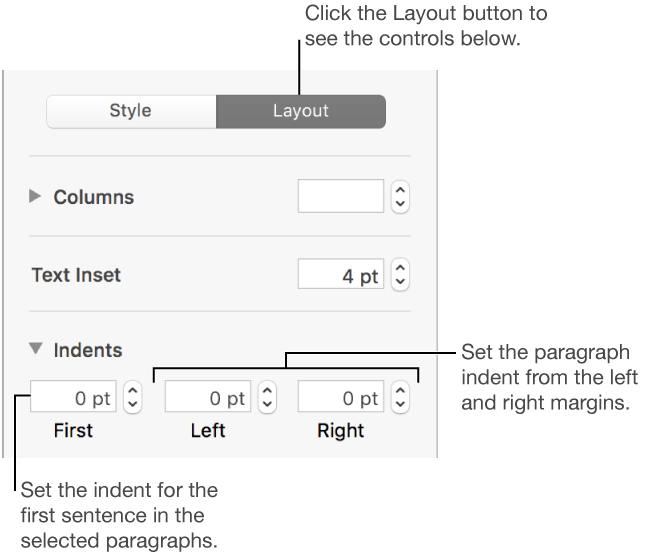
Click the Text tab at the top of the sidebar, click the Layout button below the paragraph style, then click the disclosure triangle next to Indents.

 in the toolbar.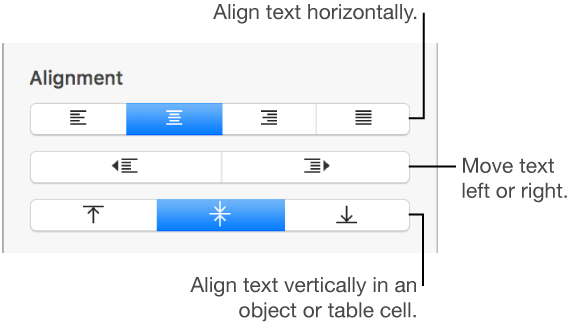
 in the