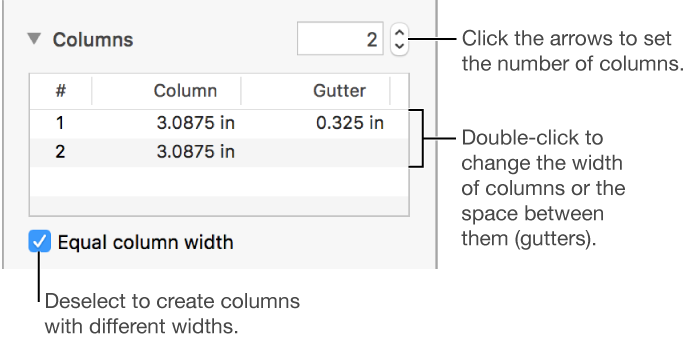
Change the number of text columns
Select the shape or text box.
Click the Text tab at the top of the sidebar on the right.
If you don’t see a sidebar, or the sidebar doesn’t have a Text tab, click
 in the toolbar.
Click the Layout button near the top of the sidebar, then click the arrows next to the columns field to add or remove columns.
To see more formatting options, click the disclosure triangle next to Columns.