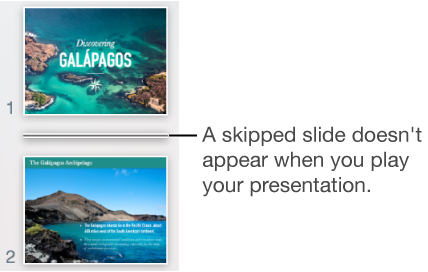

If you don’t want a slide to play during your presentation, you can skip the slide. Skipping is useful, for example, if you want to retain two versions of a slide but you want to show only one of them.
Skipped slides are editable and appear as a horizontal bar in the slide navigator. You can select them and interact with them just as you would other slides.
Select the slide in the slide navigator, then do one of the following:
Choose Slide > Skip Slide (from the Slide menu at the top of your screen).
Control-click the slide in the slide navigator, then choose Skip Slide.
To make a skipped slide visible in your presentation, select the slide, then choose Slide > Don’t Skip Slide. You can also Control-click the slide in the slide navigator, then choose Don’t Skip Slide.