Change text direction in a table
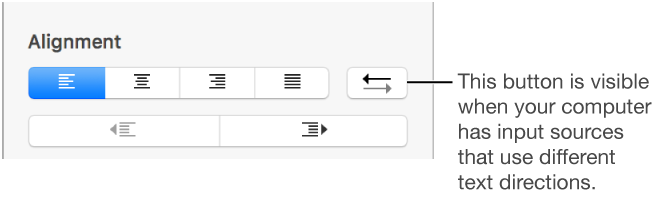
You can change the direction of text in selected cells.

Keynote supports bidirectional text, so you can enter and edit text written from left to right (such as in English or Chinese) and from right to left (such as in Arabic or Hebrew) in the same presentation. You can also reverse the direction of tables to accommodate different languages.
The direction of text in table cells is based on the direction of the top-left cell in a left-to-right table, or the top-right cell in a right-to-left table. If a cell is empty, its direction is based on the current keyboard (set in the Input menu).
For information about using other languages on your computer, and for more information about using bidirectional text, see Use bidirectional text.
You can change the direction of text in selected cells.
You can change the table direction so that header rows, column order, and other table elements are reversed.
Click the table to select it.
Do one of the following:
Choose Format > Table > Reverse Table Direction (from the Format menu at the top of your screen).
Click the Table tab at the top of the sidebar on the right, then click a Table Direction button at the bottom of the sidebar.
If you don’t see a sidebar, or the sidebar doesn’t have a Table tab, click  in the toolbar.
When you reverse table order, cell alignment is affected as follows:
Text cells set to auto-align (the default setting) change their text alignment.
Number cells set to auto-align (the default setting) don’t change their number alignment. (Numbers always auto-align to be right-aligned.)
If a cell has had its alignment specifically set to right, left, or center, it retains that alignment.
If a cell’s alignment is justified, the gap for a partial line changes from being on the right to being on the left.
 .
.