
Choose a quotation mark style
You can specify a quotation mark style for single and double quotation marks in your presentation.
To apply formatting just to specific text, rather than to all the text in the presentation, select the text.
Choose Edit > Substitutions > Show Substitutions (from the Edit menu at the top of your screen).
In the Substitutions window, select the Smart Quotes checkbox.
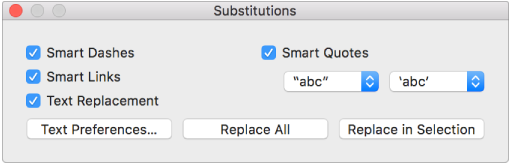
Click the left Smart Quotes pop-up menu, then choose a style for double quotation marks.
Click the right Smart Quotes pop-up menu, then choose a style for single quotation marks.
Do one of the following:
Replace all quotation marks in the presentation: Click Replace All.
Replace quotation marks in only selected text: Click Replace in Selection.