Layer, group, and lock objects

You can layer text and objects to create the appearance of depth on a slide and then move items higher (forward) or lower (backward) in the stack.

You can group multiple objects so that you can move, resize, or rotate them as a single unit. To avoid inadvertently moving, modifying, or deleting an object, you can lock it.

Layer objects

  1. Select an object then overlap it with one or more other objects.

  2. Click the Arrange tab at the top of the sidebar on the right.

    If you don’t see a sidebar, or the sidebar doesn’t have an Arrange tab, click Format button in the toolbar.

  3. With the object selected, do one of the following:

    • Move an object one layer at a time: Click Forward, or click Backward.

    • Move an object to the very bottom or top of the stack: Click Front, or click Back.

Tip: You can open the Arrange controls in a separate window that you can move anywhere. Choose View > Show Arrange Tools (from the View menu at the top of your screen). You can also add buttons to the toolbar for Forward, Backward, Front, and Back.
Group or ungroup objects

Tip: You can also add these buttons to the toolbar: Group and Ungroup.

Lock or unlock objects

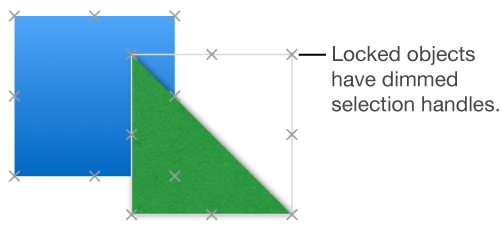
When an object is locked, you can’t move, delete, or modify it in any way until you unlock it.

Locked objects with dimmed selection handles

Alternatively, select one or more objects, click the Arrange tab at the top of the sidebar on the right, then click Lock or Unlock (near the bottom of the sidebar). If you don’t see a sidebar, or the sidebar doesn’t have an Arrange tab, click Format button in the toolbar.

Tip: You can add buttons to the toolbar for locking and unlocking objects.