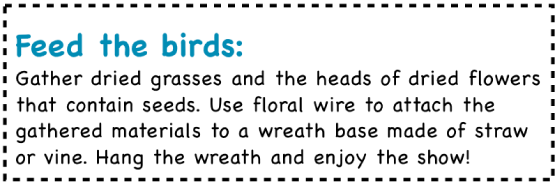

You can add color behind text in a shape or text box. You can also add a border at the top, bottom, or around paragraphs.
Tip: You can’t control the opacity of a background color in a text box. If you want to be able to control the transparency of a background, use a shape. You can customize the fill of a shape however you like.
Select the text you want to add a background color, or select the shape or text box.
Click the Text tab at the top of the sidebar on the right, then click the Layout button near the top of the sidebar.
If you don’t see a sidebar, or it doesn’t have a Text tab, click  in the toolbar.
Click the disclosure triangle next to Borders & Rules.
Choose a color in the Background Color section.
To see colors that go with your theme: Click the color well on the left.
To see all colors: Click the color wheel, then choose a color in the Colors window.
Tip: If you don’t want the color to extend from margin to margin, you can add color behind selected text.
Select the shape, text box, or specific text you want to add a rule to.
Click the Text tab at the top of the sidebar on the right, then click the Layout button near the top of the sidebar.
If you don’t see a sidebar, or it doesn’t have a Text tab, click in the toolbar.
Click the disclosure triangle next to Borders & Rules.
Click the pop-up menu, choose a line style, then click the arrows in the top value field to adjust the thickness of the line.
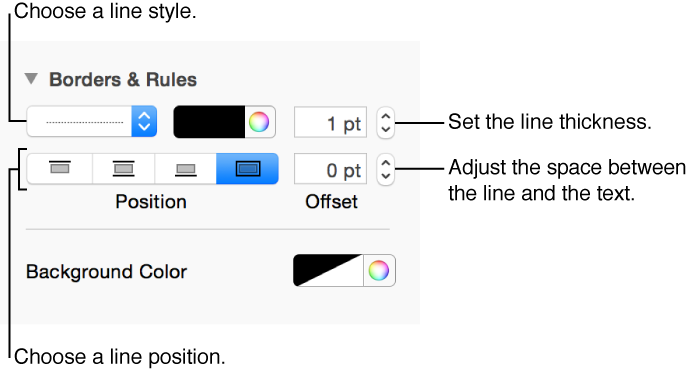
Click the color wheel next to the line style pop-up menu and choose a color.
To see colors that go with your theme: Click the color well on the left.
To see all colors: Click the color wheel, then choose a color in the Colors window.
Click a Position button to set where the line appears.
Click the arrows for the Offset field to adjust the spacing between the line and the text it surrounds.
To remove a line, select the shape, text box, or text, click the line type pop-up menu, then choose None.