Present on a separate display

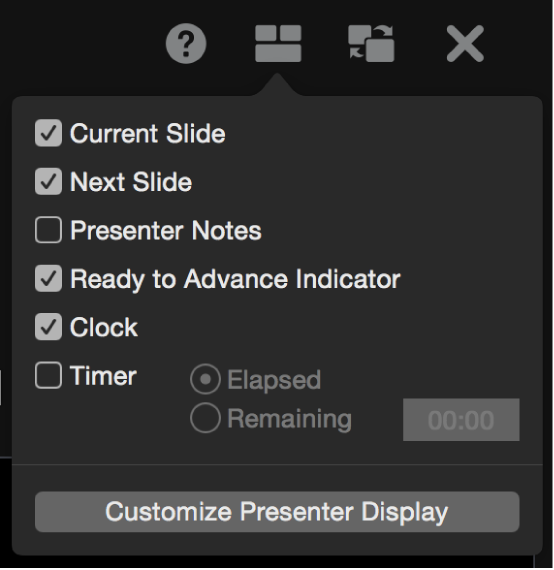
If you want to show your presentation on a separate screen, you can a connect a projector or an Apple TV with AirPlay to your computer. The presentation plays on the connected display, and your computer shows the presenter display. You can set the presenter display to show any combination of slides, presenter notes, a clock, and a timer.

If you’re using Apple TV and are mirroring your display, you won’t see the presenter display on your Mac.

Present on a separate display

  1. Connect an external display to your computer with Airplay or a video adapter.

  2. Click Play button in the toolbar on your Mac.

    Your presentation begins to play, and Keynote on your Mac switches to the presenter display. The presentation plays on the other screen.

    A red bar appears across the top of the presenter display while a build or transition is playing. (In a side-by-side layout, when the next slide doesn’t immediately appear, a slide transition or build is still playing on the current slide. The next slide appears only when the presentation is ready to advance.)

  3. Press the Right Arrow key or Space bar to advance to the next build or slide.

  4. To customize the presenter display with different items and a different layout, click Layout button.

  5. Press the Esc key to exit the presentation.

To quickly switch the slideshow display (where the presentation plays) and presenter display, press X on the keyboard.
Present with three or more displays

If you have two or more external displays connected to your Mac, you can specify which one plays your presentation. The other displays become presenter displays, and you can customize their layout.

  1. Connect two or more external displays to your computer.

  2. Click Play button in the toolbar on your Mac.

    Your presentation begins to play on one of the external displays. The other external displays and your Mac become presenter displays.

  3. To change what appears on the displays, click Layout button in any presenter display, click Configure below each display, then do any of the following:

    • Show the presentation on the display: Click Show Slideshow.

    • Stop playing the presentation on the display: Click Show Presenter Display.

    • Change the items on a presenter display: In the list that appears, choose any combination of options to set what appears on the display.

      For example, while your audience views the slideshow on one display, you can view your presenter notes on the primary display and the current and next slides on a third display.

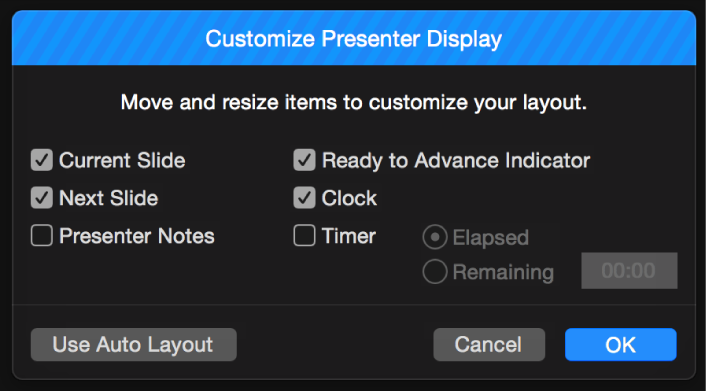
    • Modify the layout of items on a presenter display: Click Customize Presenter Display, then make changes.

  4. Click Done.

When you click Layout button, thumbnail images of up to six connected displays are shown. The primary presenter display has a star next to its name and the label Primary Display. It also has the presenter display toolbar and the slide navigator, which lets you jump to a different slide.

Customize the presenter display

You can select which items appear in the presenter display, and you can modify its layout.

If you move or resize an item and then click Layout button, the Customize Presenter Display dialog appears instead of the list of options.

You can also display the Customize Presenter Display dialog by choosing Play > Customize Presenter Display (from the Play menu at the top of your screen).

See also
Add presenter notes to your slides
Use Keynote Remote