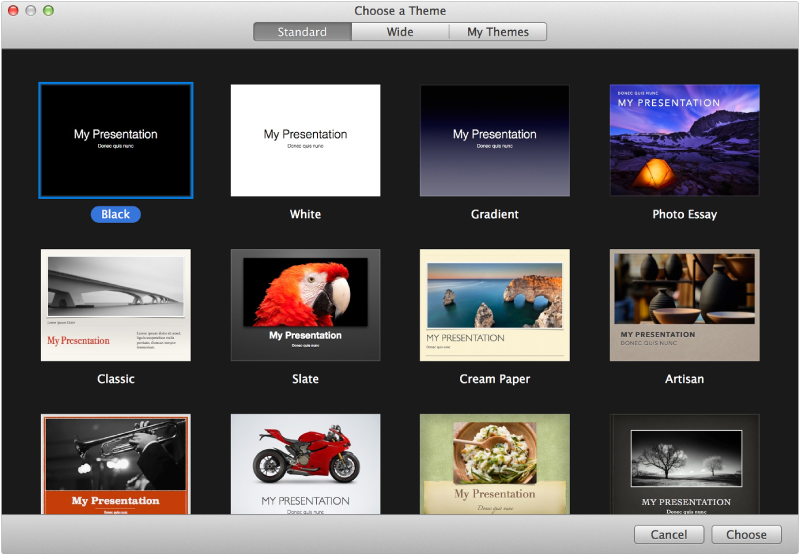

Every Keynote presentation begins with a theme. A theme is a predesigned set of elements for creating a presentation—placeholder text and images, coordinated colors, and so on. Placeholders give you an idea of what a presentation created with this theme might look like when you use its text and object styles.
You can also use Keynote to open and edit presentations created with Microsoft PowerPoint (.pptx), and save a presentation in another format, such as PowerPoint, PDF, Keynote ’09, and more.
Open Keynote, then click New Document at the bottom of the Keynote—Documents window.
If you don’t see the Keynote–Documents dialog, choose File > New (from the File menu at the top of your computer screen).
Double-click a theme for your presentation.
Do any of the following to build your presentation:
Click  in the toolbar to add slides.
Double-click placeholder text to add your own.
Drag an image from Finder or a webpage onto a placeholder image or anywhere on the slide.
Click  in the lower-right corner of a placeholder image to add an image from iPhoto or Aperture.
Choose File > Save, then enter a name and choose a location for your presentation.
You can open presentations saved on your Mac or in iCloud. You can also open Microsoft PowerPoint (.pptx) presentations.
Do any of the following:
Double-click a presentation file in the Finder.
Drag a presentation onto the Keynote icon in the Dock or Applications folder.
In Keynote, choose File > Open (from the File menu at the top of your computer screen), click iCloud or On My Mac in the upper-left corner of the window, select the presentation, then click Open.
Choose File > Open Recent to see the last ten presentations you opened.
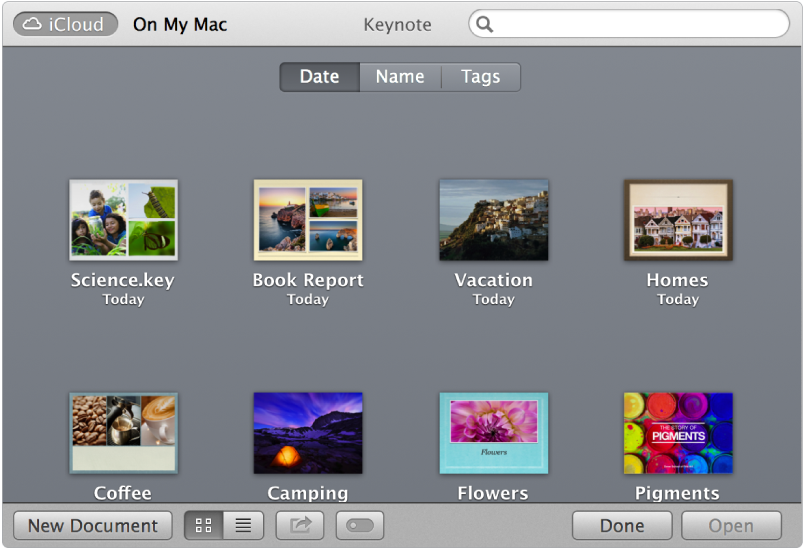
If you don’t see your presentations that are stored in iCloud, make sure you’re signed into iCloud. You may need to set up iCloud on your Mac, or turn on “iCloud for Documents & Data.”
To set up or sign in to iCloud, choose Apple menu () > System Preferences (from the menu at the top of your computer screen). Click iCloud, then select Documents and Data.
You can set a preference in Keynote to always open a new presentation in a particular theme instead of from the theme chooser.
In Keynote, choose Keynote > Preferences (from the Keynote menu at the top of your computer screen).
Click General, then select the Use theme radio button.
Do one of the following:
Close the preferences window to apply the change.
Click Change Theme, choose the theme you want to use, click Choose, then close the preferences window to apply the change.
If you want to choose a different theme for a new presentation when this preference is selected, hold down the Option key when you choose File > New From Theme Chooser (from the File menu at the top of the computer screen).