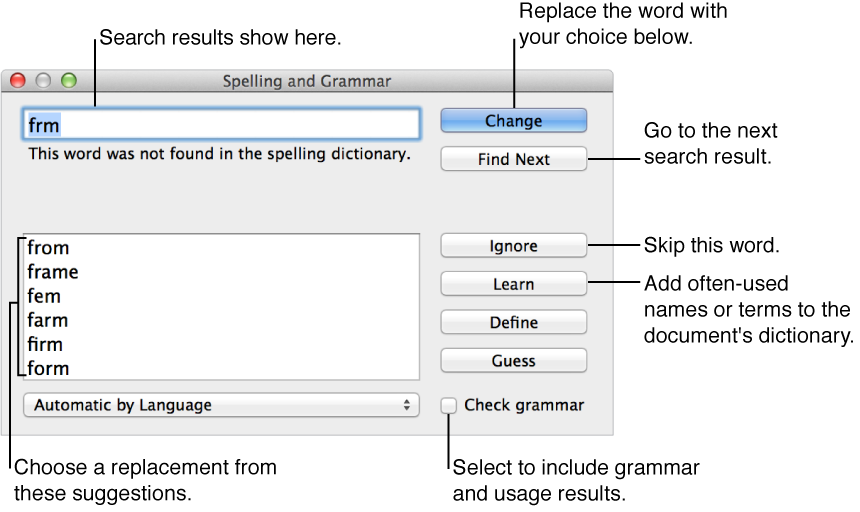

You can set Keynote to flag spelling errors as you type, and you can check your entire presentation or selected text for misspellings. Keynote can also check grammar and look up the definitions of words.
Use the Spelling and Grammar window to check spelling and grammar, add terms to the dictionary, and change the language of the dictionary. When you add terms to the dictionary, you teach Keynote new words so that it doesn’t mark them as misspelled.
Choose Edit > Spelling and Grammar (from the Edit menu at the top of your computer screen), then enable any of the options:
Check Spelling While Typing: Underlines misspelled words in red.
Check Grammar With Spelling: Underlines misspelled words in red and questionable grammar in green.
Correct Spelling Automatically: Underlines misspellings in blue as you enter text and briefly shows its replacement. If you disagree with the replacement, click the x in the suggestion bubble to keep your entry.
Control-click a misspelled word, then choose one of the options in the shortcut menu.
Choose Edit > Spelling and Grammar > Show Spelling and Grammar (from the Edit menu at the top of your computer screen).
Control-click the word, then choose “Look up [word]” in the shortcut menu.