
You can group slides in the slide navigator by indenting selected slides below another slide. Grouping doesn’t affect how a presentation plays, and it can help you organize and arrange slides more efficiently. You can move grouped slides as a set and collapse groups for a better view of your presentation’s organization.
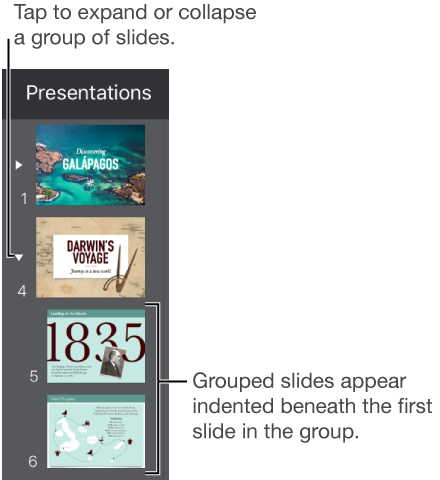
If you don’t see the slide navigator, pinch closed on the slide to zoom out.
Touch and hold a slide in the slide navigator until the slide appears to lift up.
To select multiple slides, touch and hold one slide, then tap the others with another finger.
Drag the slide to the right until a line appears on the left.

Slides can be indented up to six levels deep, but you can indent only one level between consecutive slides.
Select one or more grouped slides, then drag them to the left until they’re no longer indented.