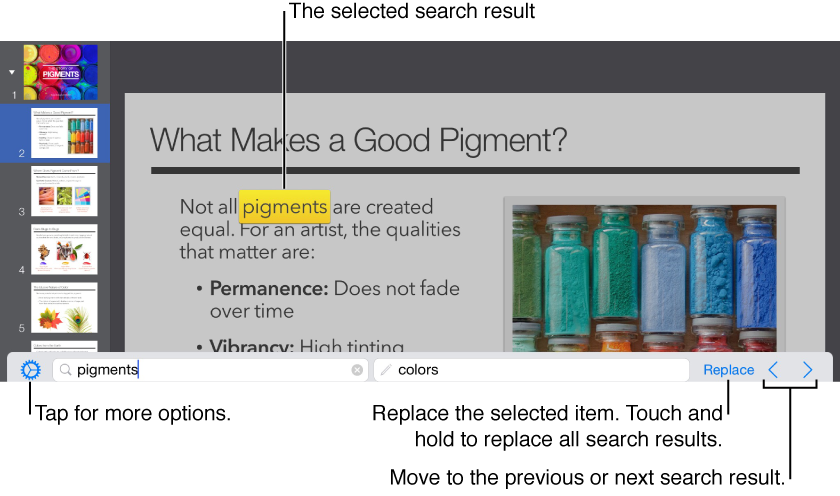

You can search for specific words, phrases, numbers, and characters, and automatically replace search results with new content that you specify. All content, including content on skipped slides and in presenter notes, is included in the search.
Tap  , then tap Find.
In the search field, enter the word or phrase you want to find.
Matches are highlighted as you enter text.
To find only words that match the capitalization you specify, or to restrict search results to the whole words you enter, tap  , then turn on Match Case or Whole Words.
Tap the arrows to find the next or previous match.
Tap anywhere on the slide to close the search results.
Tap , then tap Find.
Tap , then tap Find and Replace.
You can select other options, such as Whole Words and Match Case, to refine your search.
Enter a word or phrase in the first field.
As you enter text, matches are highlighted. The first match is selected and highlighted in yellow.
Enter the replacement word or phrase in the second field.
Review and change the text matches:
Move to the previous or next match without making a change: Tap the arrows.
Replace the selected match: Tap Replace.
Replace all text matches with the replacement text: Touch and hold Replace, then tap Replace All.