
Add and edit images

You can add photos and graphics to any slide and then change their appearance in a number of ways. For example, you can crop an image by masking out parts you don’t want.

You can add photos from photo albums on your device, insert photos and images from iCloud, or take a photo with your device and add it directly to your slide.

Add an image

  1. Do one of the following:

    • Tap where you want to insert the image, tap Add button, then tap Media button.

    • Tap Placeholder button in the bottom-right corner of an image placeholder.

  2. Tap an album, or tap “Insert from” at the bottom of the screen.

  3. Tap a photo to add it.

    If you’re inserting from iCloud or another service, you’ll need to tap folders to find the image.

  4. Tap the presentation to return to it.
Take a photo in Keynote and add it to a presentation

If your device has a camera, you can take a photo and insert it directly into your presentation.

  1. Tap where you want to add the image.

  2. Tap Add button, then tap Media button.

  3. Tap “Take a Photo or Video” at the bottom of the screen.

  4. Take the photo, then tap Use Photo.

    You can tap Retake if you want to try again.

    To cancel and return to the presentation, tap Retake, then tap Cancel.

  5. Drag the image to reposition it.

You can edit the photo as you would any other image. The photo appears in the Photos app on your device.

Mask (crop) a photo

You can hide unwanted portions of an image without modifying the image itself.

  1. Double-tap the image.

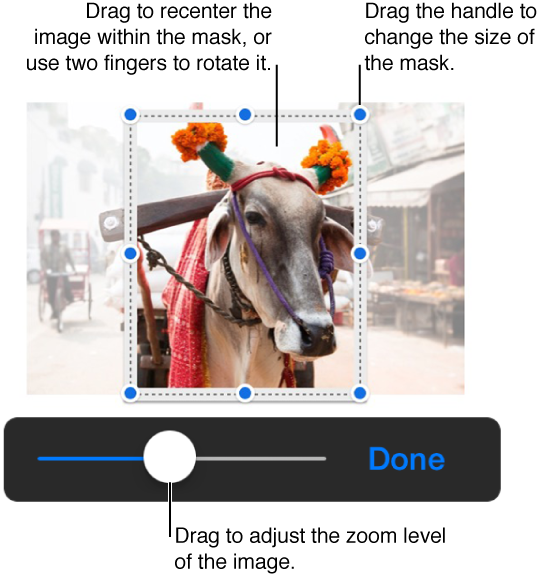
    The mask controls appear. The default mask is the same size as your image.

  2. Use the controls to change which parts of the image are visible:

    Mask controls over a photo
  3. Tap Done when you’re finished.

    Double-tap the image at any time to readjust its mask.

Remove background and other elements from a photo

Use the Instant Alpha tool to make parts of an image transparent. This feature is useful for removing an unwanted background or color.

  1. Tap the image, then tap Format button.

  2. Tap Image, then tap Instant Alpha.

  3. Drag your finger over the color you want to disappear.

    As you drag, the selection grows to include areas that use similar colors. Drag multiple times to remove multiple colors.

  4. Tap Done, or tap Reset to revert to the original image.

See also
Change an object’s appearance