 .
.
An object is any item you place on your slide. Photos, shapes, charts, and text boxes are examples of objects. You can change an object’s appearance using the tools available by tapping .
Each object has its own formatting options, which are unique to the properties and characteristics of the object. For example, a line has endpoints, so when a line is selected, Keynote displays controls for changing the appearance of the endpoints.
Tap  , then tap the button for the type of object you want to add.
Swipe to see more style options for objects like tables, charts, and shapes.
Tap an object to add it, then drag it to where you want it on the slide.
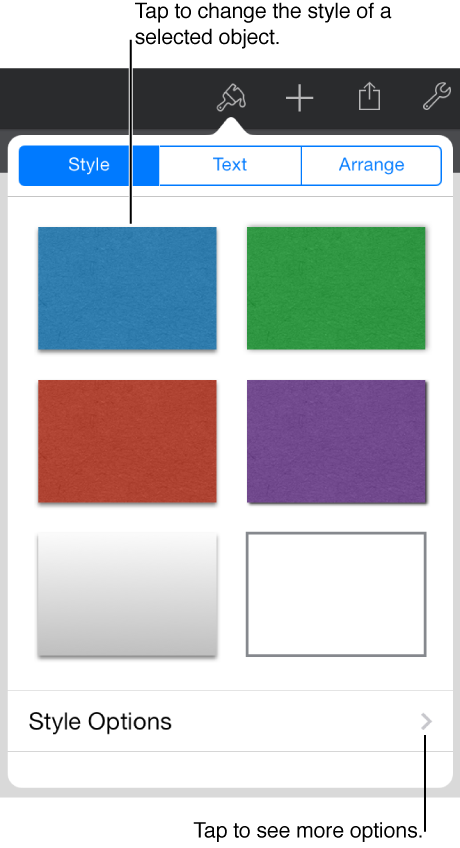
To change the appearance of the object, select the object (it has blue selection handles when it’s selected), tap , then tap Style.
Tap a style thumbnail to apply a predesigned style, or tap Style Options to add a custom border, shadow, reflection, and more.
Swipe up to see all formatting options.