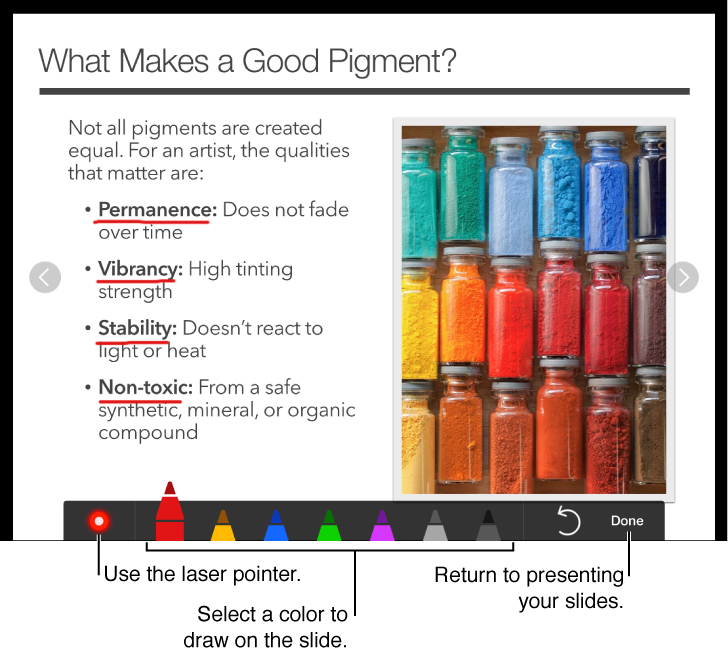

You can draw on your slides as you present them. This is useful, for example, if you want to emphasize a particular bullet point on your slide—you can circle the bullet point for your audience. If you are using Keynote Remote to control a presentation from your iPad, you can draw on your iPad and have your drawing appear on the Mac or iOS device that’s playing your presentation.
You can draw with one of seven different colors, or use the laser pointer.
Select the slide you want to begin a presentation with, then tap  .
.
Advance through your presentation.
To draw on a slide, touch and hold the slide.
Do any of the following:
Draw with a color: Tap a pen and draw on the slide.
Erase the last highlight: Tap  . Continue tapping to undo all your drawing on the slide.
Use the laser pointer: Tap the laser pointer and move your finger around the slide; the laser pointer follows your movements.
Return to the previous slide or advance a slide: Tap the left or right arrow on the slide.
Hide the drawing tools: Tap Done.
Set up your presentation with Keynote Remote to present your slideshow.
Tap  on the device that you’re using as a remote control.
Do any of the following:
Draw with a color: Tap a pen and draw on the slide.
Use the laser pointer: Tap the laser pointer and move your finger around the slide; the laser pointer follows your movements.
Erase the last highlight: Tap . Continue tapping to undo all your drawing on the slide.
Return to the previous slide or advance a slide: Tap the left or right arrow on the slide.
Hide the drawing tools: Tap Done.