
If you subscribe to Apple Music or iTunes Match, your music is stored in your iCloud Music Library, so you can access it at any time, wherever you’re connected to the Internet.
Apple Music gives you unlimited access to millions of songs on up to ten of your devices and computers. You can play songs—or download them to your computer or device so you can play them when you’re not connected to the Internet.
iTunes Match is a service that safely stores all your music in iCloud—even songs imported from CDs or not purchased in the iTunes Store—and makes it available on up to ten of your devices and computers. With iTunes Match, you have access to your complete iTunes music library at any time.
To use Apple Music or iTunes Match, you need to be a subscriber.
If you’re not already signed in, sign in to the iTunes Store using the same Apple ID that you used to set up iCloud Music Library on the first computer.
Choose Edit > Preferences, then click General.
Select the iCloud Music Library checkbox.
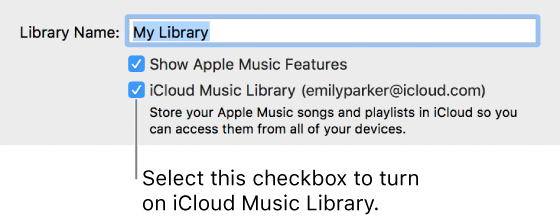
WARNING: After you turn on iCloud Music Library on a device, all the music that’s currently on the device is deleted and replaced with songs from iCloud. Also, you can’t use iTunes to sync music to the device. You can add songs to the device only by downloading them from iCloud.
Sign in to the iTunes Store from the device using the same Apple ID that you used to set up iCloud Music Library on your computer (if you haven’t done so already).
On your device’s Home screen, tap Settings, then tap Music.
Tap to turn on iCloud Music Library.
For information about adding songs to your device from iCloud, see the documentation for your device.
You can play songs directly from iCloud, or you can download songs so you can play them when you’re not connected to the Internet.
If a song hasn’t been downloaded, it has an iCloud Download button  next to it.
Play a song: Double-click it.
Download a song: Click the iCloud Download button .
To view only your downloaded items, select Downloaded in the sidebar on the left.
After you download a song to a computer, it remains in the computer’s iTunes library, even if you turn off iCloud Music Library.
Display only songs you’ve downloaded in your iTunes library: Choose View > Hide Music in the Cloud.
For information about downloading and playing songs on an iOS device, see the documentation for the device.
Deleting a song from iCloud also removes the song from all your iOS devices that have iCloud Music Library turned on. If the deleted song was downloaded to any of your other computers, it remains on those computers until you manually delete it.
Choose Music from the pop-up menu at the top left.
Click Library.
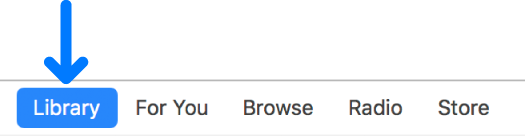
Select a song or songs to delete and press the Delete key.
If the song hasn’t been downloaded from iCloud to the computer you’re currently using, click Delete Song.
If the song has been downloaded, select “Also delete this song from iCloud,” then click Delete Song. If you don’t select this option, the item is deleted from your computer but remains in iCloud.
In your iCloud Music Library, you can store:
Up to 100,000 songs, not including songs (or music videos) purchased from the iTunes Store. Files must be a maximum of 200 MB.
Matched songs (songs available in the iTunes Store, whether or not you purchased them there) at iTunes Plus quality (256 kbps DRM-free AAC) and other songs at their original quality.
Music videos purchased in the iTunes Store.
Playlists that include only songs.
Smart playlist rules, which are applied on the computer or device they’re downloaded to.
Note: iCloud Music Library isn’t available in all countries.