
If you have an iPod with a color display, an iPhone, or an iPad, you can add digital photos to it using iTunes.
You can connect iPhone, iPad, and some iPod models to a TV to view photos.
Note: If you use iCloud Photo Library to share your photos, you can’t sync your photos using iTunes.
Connect your device to your computer.
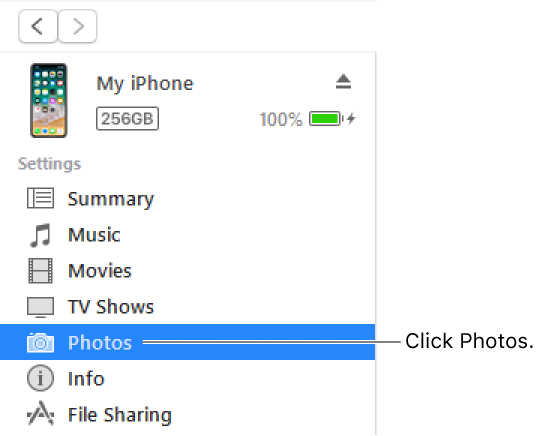
Click the Device button, then click Photos.
Select “Sync Photos,” then choose an album or folder from the pop-up menu.
If you’re using Adobe Photoshop Album or Adobe Photoshop Elements, you can export photos directly from those applications to your device by choosing Photoshop Album or Photoshop Elements from the pop-up menu.
Choose whether to move all your folders or albums, or only selected folders or albums.
To also move the full-resolution versions of these photos to your iPod, select “Include full-resolution photos.” This option is available on iPod classic and iPod nano only.
Note: To move the photos from your iPod to another computer, select this option, then also select “Enable disk use” in the Summary pane. For more information, see Set up iPod as an external hard drive.
Click Apply.
If it’s the first time you’re adding photos to your iPod, iPhone, or iPad, it might take a while, but subsequent syncs should be faster.
For more information about using your iPod, iPhone, or iPad to view photos, see the documentation that came with your device.