
To add items on your computer to your iPod, iPhone, or iPad, you sync them using iTunes. You can have iTunes sync items automatically (which is the quickest option), or drag items to your device manually (which gives you more control)—or you can do both. You can also remove items from your device automatically or manually.
If you have iPod touch, iPhone, or iPad with iOS 5 or later, you can sync your device wirelessly when your computer and device are connected to the same Wi-Fi network. Without a Wi-Fi connection, sync your device using USB. For more information, see the Apple Support article Sync your iPhone, iPad, or iPod touch with iTunes on your computer using USB.
For general information about syncing, see Syncing overview.
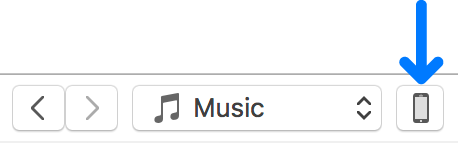
Connect your device to your computer, then click the Device button near the top left of the iTunes window.
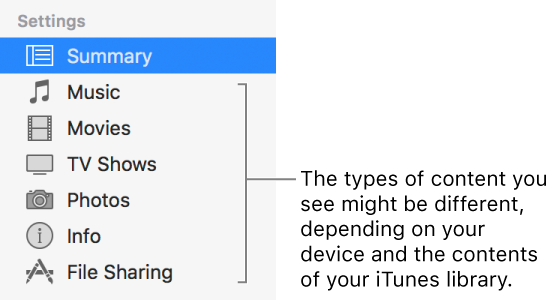
Select the type of content you want to sync (for example, Music or Podcasts) in the sidebar on the left.
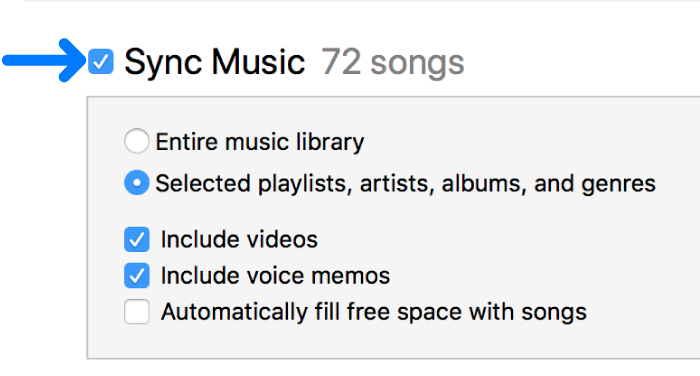
Select the Sync checkbox, then select the items you want to sync automatically each time you connect your device.
Repeat steps 2 and 3 for each type of content you want to include on your device.
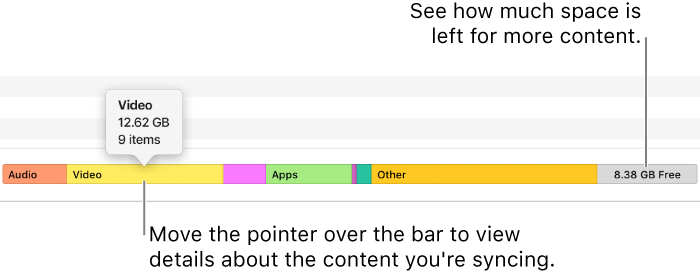
The bar at the bottom of the window shows how much space will remain on your device after you sync.
By default, iTunes syncs your device whenever you connect it to your computer. If you want to have iTunes ask you before syncing, do one of the following:
Require a prompt before syncing this device: Click Summary, then deselect “Open iTunes when this [device] is connected.”
Require a prompt before syncing all devices: Choose iTunes > Preferences, click Devices, then select “Prevent iPods, iPhones, and iPads from syncing automatically.”
When you’re ready to sync, click Apply.
Tip: To automatically sync a connected device at any time, choose File > Devices > Sync [device name].
WARNING: If you delete an automatically synced item from your iTunes library, the deleted item is removed from your device the next time you sync.
You can manually add music, movies, TV shows, and podcasts to your device. You can’t manually add photos, books, contacts, or other info.
Make sure your device is connected.
In your iTunes library, Control-click an item, choose Add to Device, then choose your device.
Note: Only items you’ve downloaded are available to add to a device.
If there are some items you never want synced (for example, if they’re too big to fit on your device), you can keep them from being synced.
You can also turn off automatic syncing for music, movies, and TV shows. You must do this if you want to sync iPod classic, iPod nano, or iPod shuffle with more than one iTunes library, or automatically fill your device with songs using Autofill (see the next task, below).
Connect your device to your computer.
Click the Device button, then click Summary.
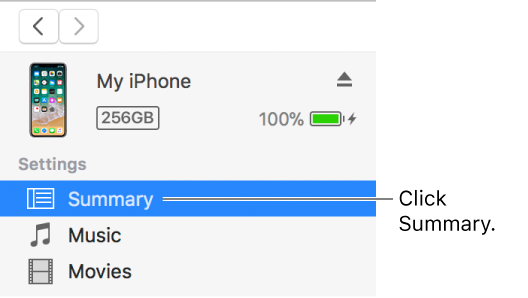
Do any of the following:
Keep individual items from being synced: Select “Sync only checked [items].” Then deselect the checkbox next to any items in your iTunes library that you don’t want synced.
Turn off automatic syncing for music, movies, and TV shows: Select “Manually manage music and videos.”
Click Apply.
WARNING: If you turn off automatic syncing on your device, adding books for the iBooks app on your device erases all your other content. You should add books to your device only when automatic syncing is on.
If you don’t want to always hear the same music on your device, you can have iTunes fill it with a random selection of songs by using Autofill.
To use Autofill, you must turn off automatic syncing for music and videos (see instructions above).
Connect your device to your computer, then click the Device button near the top left of the iTunes window.
Select Music in the sidebar on the left, below On My Device.
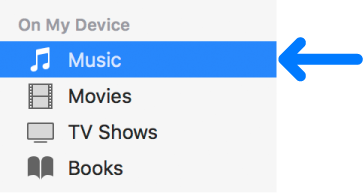
Click the Autofill pop-up menu at the bottom of the Music pane, then choose which songs you want to sync.
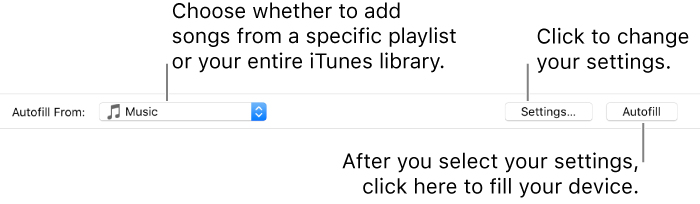
To adjust Autofill settings, click Settings.
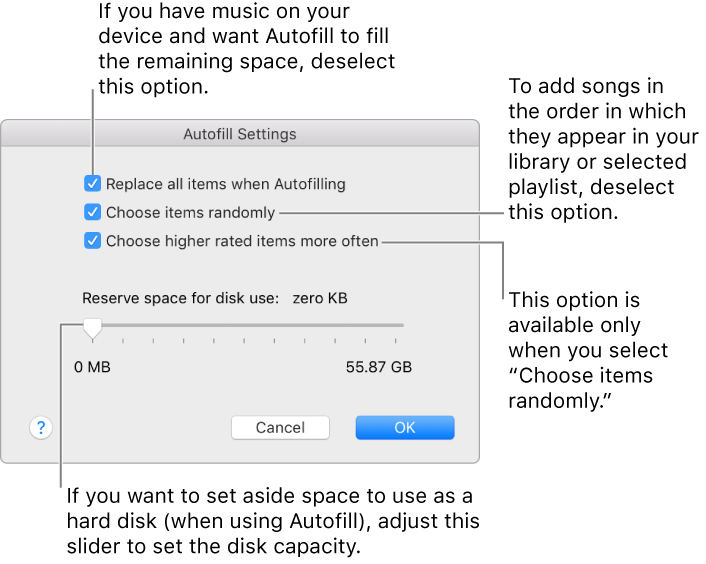
For more details, see Autofill settings.
When you’re done, click OK.
Click Autofill, then click Sync.
Each time you use Autofill, iTunes adds different songs to your device.
Make sure your device is connected, then do any of the following:
Remove an item that was synced automatically: Do one of the following, then sync your device:
Deselect the checkbox for the item in your iTunes library, then select “Sync only checked [items]” in the Summary pane.
If the item was added because it’s part of a synced playlist, remove the item from the playlist.
Change your sync settings to keep the item from being synced.
Remove an item that was added manually or using Autofill: Click On My Device, select an item (or items), press the Delete key, then click Delete.
The types of content you can sync depends on your device. For more information, see the documentation for your device.
You can sync multiple devices with your iTunes library, and use different settings for each device.
Important: Before disconnecting iPod classic, iPod nano, or iPod shuffle from your computer, click the Eject button  .
.