
You can customize the way you view and play your iTunes content.
MiniPlayer takes up very little space on your screen and still lets you adjust the volume, search for songs, choose which songs play next, and more.
MiniPlayer displays the album artwork for the song that’s playing. When you move the pointer over the artwork, controls appear.
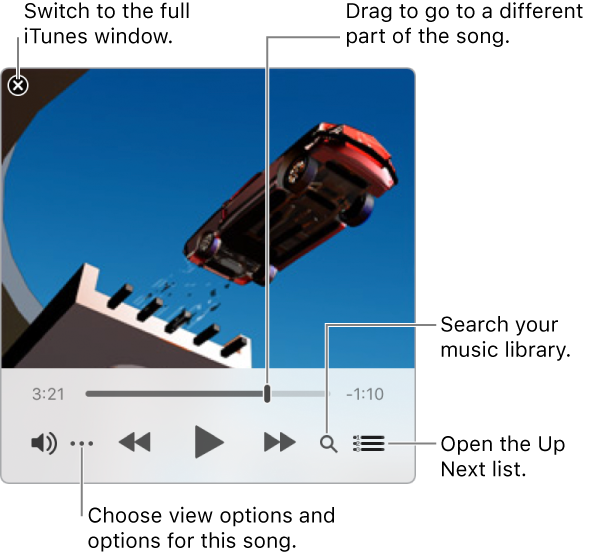
You can also shrink the MiniPlayer screen to an even smaller size.

Open MiniPlayer: Choose Window > Switch to MiniPlayer.
View and edit a list of upcoming songs: Click the Up Next button  .
.
Keep MiniPlayer in the foreground on your desktop: Choose iTunes > Preferences, click Advanced, then select “Keep MiniPlayer on top of all other windows.”
Shrink to the smaller MiniPlayer screen: In the row of controls, click the Action Menu button  , then choose Hide MiniPlayer Large Artwork. To expand back to the full MiniPlayer, click the Action Menu button , then choose Show MiniPlayer Large Artwork.
To enter full-screen view, click the green button at the top-left corner of the iTunes window.
To exit full-screen view, move the pointer to the top of the screen, then click the green button at the top-left corner of the iTunes window.
To quickly drill down into your music library and find a song, use the column browser.
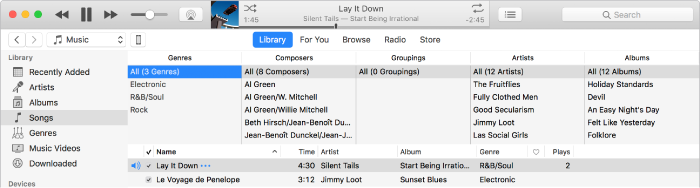
Your music is sorted by up to five categories (Genres, Composers, Groupings, Artists, and Albums), divided into columns. As you select an item in each column, the list narrows down to display only the matching songs.
For example, to find only music by Mozart, you could select Classical in the Genres column, then Mozart in the Composers column.
Choose Music from the pop-up menu at the top left.
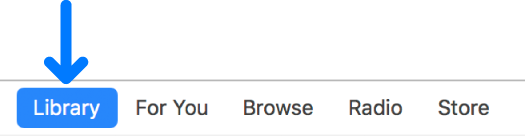
Click Library.
Select Songs from the sidebar on the left.
Choose View > Column Browser > Show Column Browser, then choose the columns you want to display. You can’t change the order of the columns.
To use the column browser, select options in as many columns as you’d like.
As you select options, songs that match your selections are displayed below.
To close the column browser, choose View > Column Browser > Hide Column Browser.
By default, the sidebar is visible. You can hide it.
Choose View > Hide Sidebar or View > Show Sidebar.
Note: You can’t access your playlists when the sidebar is hidden.