
If you’re on a Wi-Fi network, and have iOS 5 (or later) installed on your iPod touch, iPhone, or iPad, you can sync your device (add items to it from your computer) without connecting it to your computer (if your computer and device are connected to the same network).
When you sync automatically over Wi-Fi, your device uses the same sync settings you chose for syncing using a cable.
Connect your device to your computer.
Click the device button, then click Summary.
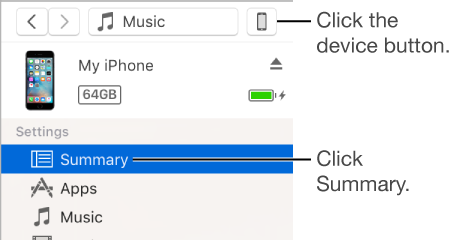
Select the checkbox for “Sync with this [device] over Wi-Fi.”
Click Apply.
When you disconnect your device from your computer, the icon for your device still appears in iTunes unless you click the Eject button  .
.
If you click Eject, the icon for your device is removed, but Wi-Fi syncing remains turned on. The icon for your device reappears the next time you open iTunes (if your computer and device are connected to the same WI-Fi network).
Here are ways to sync wirelessly when your device is on the same Wi-Fi network as your computer (the computer must be turned on):
Connect your device to a charger and plug it in to an electrical outlet. Syncing begins automatically.
In iTunes, click the icon for your device, and click the Sync button.
Add items to your device manually by dragging.
On your device, choose Settings > General > iTunes Wi-Fi Sync, and tap Sync Now. You can use your device while it’s syncing over Wi-Fi.
Note: To restore your device’s iOS software and revert it to its factory settings, you must connect the device to your computer.
You can sync a device wirelessly with multiple computers, but each type of content can be synced with only one computer.
Syncing over Wi-Fi is slower than syncing over a cable. If you connect a device to your computer while the device is syncing over Wi-Fi, syncing continues over the cable. If you disconnect the device’s cable from the computer while syncing, syncing stops, even if Wi-Fi syncing is on.