
Music and video you buy from the iTunes Store or download from Apple Music come with artwork. You can also add your own artwork to any song or other item in your library.
You can add many types of still-image files, including JPEG, PNG, GIF, TIFF, and Photoshop. You must convert WAV files to another format before you can add artwork to them.
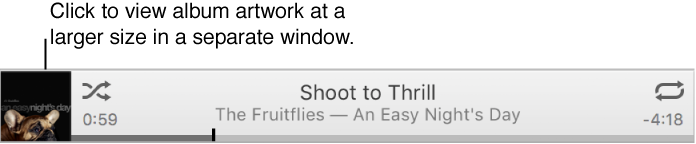
You can also change the artwork for any playlist in your library.
Add artwork to one item: Select an item in your iTunes library, choose File > Get Info, click Artwork, and do one of the following:
Click Add Artwork, select an image file, and click Open.
Drag the image file to the artwork area.
Add the same artwork to multiple items: Select the items, choose File > Get Info, click Info, and drag an image file to the artwork area.
Retrieve album artwork from the iTunes Store for your entire library: Choose File > Library > Get Album Artwork.
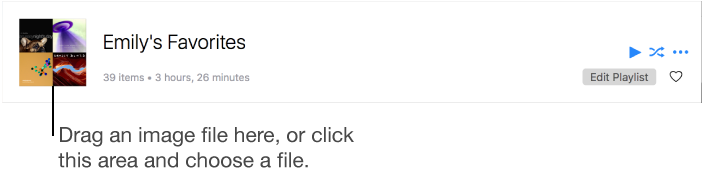
You can personalize any playlist by adding your own artwork.

Choose Music from the pop-up menu at the top left.
Click Library.
Select a playlist from the sidebar on the left.
Do one of the following:
Click the artwork area at the top left of the playlist, then choose an image file.
Drag an image file to the artwork area.
Click Done.