Buy or download items from the iTunes Store

Buy or download an item

  1. To go to the store, click iTunes Store near the top center of the iTunes window.

    iTunes Store selected in the iTunes navigation bar
  2. When you find the item you want, click the button to download it (depending on the item, the button might say Buy, Free, Subscribe, a specific price, or something else).
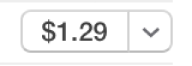
    A button displaying a price

To preview an item before purchasing, move the pointer over the item and click the Preview button Play icon inside a circle.

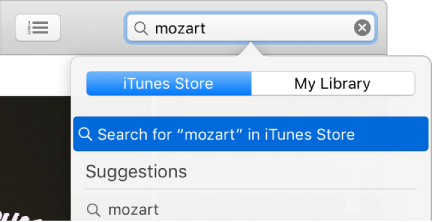
Search for items

Choose the format for movies and TV shows

Some movies and TV shows are available in HD (high definition) format. Of these, some are available in both 1080p and 720p formats.

If you want to watch HD movies and TV shows on a computer display that doesn’t support HD, you can set iTunes to play them in standard definition.

TV shows

You can buy individual episodes or entire seasons (buying an entire season at once can cost less). If you buy an entire season, you have these options (not all are available for all shows or in all countries):

Many shows are available for download and purchase the day after they air; some shows may not be available for a few days.

Audiobooks

You can listen to audiobooks on your computer or your iPod touch, iPhone, or iPad.

Many audiobooks provide a sample you can listen to before you buy the book. Samples are downloaded only to your device.

Spoken program files purchased from the iTunes Store end in .m4b.

Mobile apps and games

The App Store is a section of the iTunes Store. You can download apps to your computer and sync them to your iPod touch, iPhone, or iPad.

You can use apps and play the games only on your device, not on your computer. Some apps might not work on all devices.

See also
Authorize a computer to play iTunes Store purchases