iPod, iPhone, and iPad include many accessibility features that make it easier to use your device if you have visual, auditory, or other physical disabilities.
The following accessibility features are available on iPod touch (3rd generation or later), iPhone 3GS (or later), and iPad:
VoiceOver
Zoom
Invert Colors
Mono Audio
Speak Auto-text
These accessibility features work with all apps preinstalled on the devices, as well as many apps downloaded from the App Store.
iPod nano (6th generation) also includes VoiceOver, White on Black, and Mono Audio, and iPod nano (4th or 5th generation) includes spoken menus.
Connect your device to your computer.
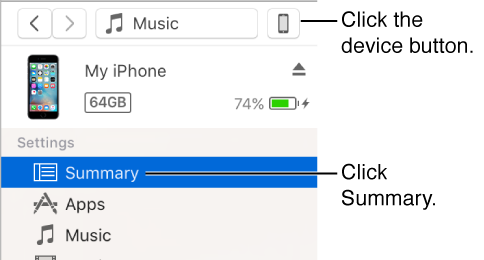
Click the device button, then click Summary.
Click Configure Accessibility (below Options).
Select the accessibility features you want to use, and click OK.
You can also turn accessibility features on or off using the Accessibility settings on your device. For more information, see the documentation that came with your device.
You can use spoken menus with iPod nano (4th or 5th generation) to hear information about the selected song, such as title, artist, and album.
Connect your device to your computer.
Click the device button, then click Summary.

Select “Enable spoken menus for accessibility” or “Enable Spoken Menus.”
If you turned on VoiceOver in OS X Universal Access preferences, this option is already selected.
Click Apply.
When spoken menus are turned on, it might take longer to sync your iPod nano.
VoiceOver makes it easy to navigate through your content by announcing the names of playlists, songs, artists, and more. To hear these announcements, you need to install the VoiceOver Kit and enable VoiceOver in iTunes.
Note: If you have an iPod nano (6th generation), follow the instructions in "Turn on accessibility features," above, to turn on VoiceOver and other accessibility features.
Connect your device to your computer.
Click the device button, then click Summary.

Select Enable VoiceOver, and click Apply.
Follow the onscreen instructions to download and install the VoiceOver Kit.
Select VoiceOver settings.
Click Apply to sync your iPod with iTunes.
When syncing is complete, VoiceOver is on.
Connect your device to your computer.
Click the device button, then click Summary.

Select new VoiceOver settings. To turn off VoiceOver, deselect Enable VoiceOver.
Click Apply to sync your iPod with iTunes.
When syncing is complete, VoiceOver is turned off.