 near the top left of the iTunes window, choose Movies or TV Shows, then click My Movies or My TV Shows.
Use iTunes to play:
Movies purchased or rented from the iTunes Store
TV shows purchased from the iTunes Store
Music videos purchased from the iTunes Store
Any compatible video (such as H.264 or MPEG-4)
To view your video library (except music videos), click near the top left of the iTunes window, choose Movies or TV Shows, then click My Movies or My TV Shows.
To view your music videos, click near the top left of the iTunes window, choose Music, click My Music, then select Music Videos in the sidebar on the left.
Start playing a video: Double-click it.
Control video playback: Move the pointer anywhere over the playback window to make the controls (Play/Pause, Volume, and so on) appear.
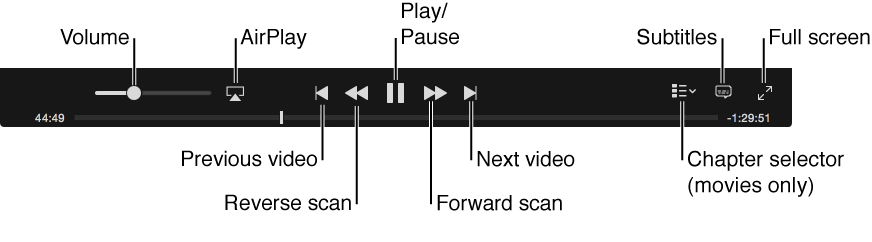
Some videos feature subtitles, closed captioning, and alternative audio tracks (for example, tracks in other languages).
To change audio and subtitle settings while a movie is playing, do one of the following:
Choose Controls > Audio & Subtitles > [option].
Move the pointer over the movie until the controls appear, click the Subtitles button  , and choose an option.
Start playing a video, then choose View > Video Playback > in Separate Window.
The video opens in a new window, which you can resize and move.
By default, videos play in the iTunes window. If you changed the location to a separate window, the iTunes window may be blocking the window where the video is playing. Try any of the following:
Move the iTunes window.
Click Window in the menu bar and choose your video, if it’s listed.
Videos purchased from the iTunes Store can be viewed only in iTunes and QuickTime Player.