
Choose which speakers to use
Use external speakers: Connect the speakers to your computer. iTunes plays through them and mutes the computer’s built-in speakers.
Use speakers connected to an AirPort Express network, Apple TV, or another AirPlay-enabled device: Click the AirPlay button
 at the top of the iTunes window, click Single, and choose the speakers you want to use.
Use more than one set of speakers: Click Multiple in the AirPlay menu, and click
 next to the speakers you want to use. A checkmark
  appears next to any speakers you’re using.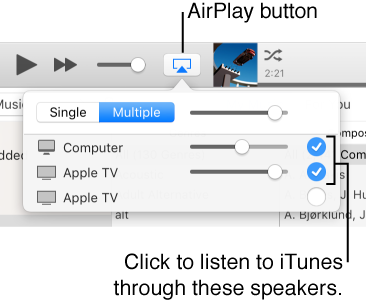
 ,
, or
or  :
: :
: :
: