 next to them.
You might want to create playlists to suit specific moods, to organize songs with a certain theme, or to group songs you want to burn to a CD.
Playlists you create have this icon next to them.
Choose File > New > Playlist.
Type a name for the playlist.
Click Edit Playlist.
To add items, drag them to the playlist on the right.
When you’re finished adding items, click Done.
Select the playlist and do any of the following:
Add items: Click Edit Playlist, drag items to the playlist on the right, then click Done.
Change the order of songs: Drag the songs into the order you want. If you can’t drag a song, click the column heading above the numbers.
Remove an item: Select the item and press the Delete key (this does not remove the item from your library or storage device).
Do one of the following:
From anywhere in your iTunes library, drag an item to a playlist in the sidebar on the left.
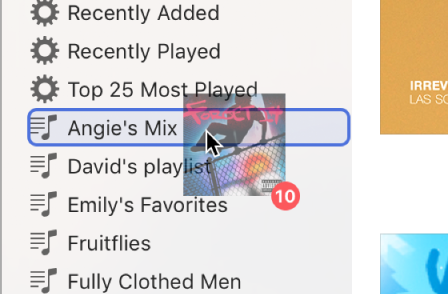
Control-click an item, choose Add to Playlist, then choose a playlist.
You can also create a Smart Playlist that updates automatically based on rules you choose, or a Genius playlist that includes music in your library that’s similar to the selected song.