Update and manage your podcast RSS feed in Apple Podcasts Connect.
A Podcaster’s Guide to RSS
An RSS feed contains all the metadata of a podcast. This information governs what listeners will see about your podcast on Apple’s services: from the the show art, to whether a podcast shows up in relevant searches, to episode titles and descriptions.
All metadata in an RSS feed is stored within element tags (here is a RSS Feed Sample for reference). Each tag is applicable to either show data (contained within the <channel> tag) or episode data (contained within an <item> tag). This guide will explain what data to include and how it should be structured.
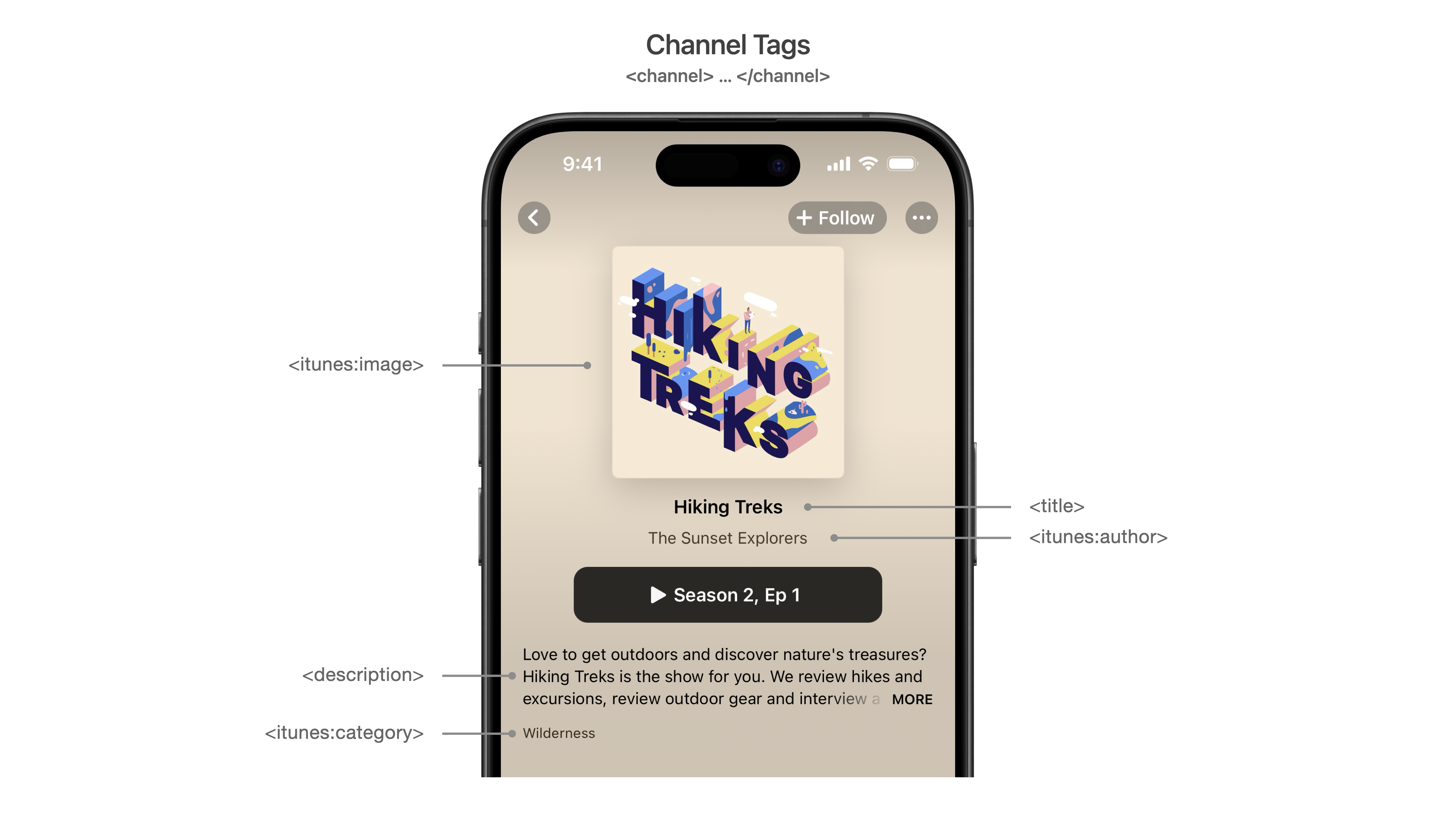
The figure below depicts a “Show view” from the Apple Podcasts app, and and labels how <channel> tags map to show information.
In the table below, Required tags must be present in your RSS feed or it won’t pass validation to be listed in Apple Podcasts. Recommended tags aren’t required but are highly encouraged because they provide useful information to users. Situational tags are important in certain circumstances.
Show tags
Usage
Parent tag
Required tags
<title>
The show title.
It’s important to have a clear, concise name for your podcast. Make your title specific. A show titled Our Community Bulletin is too vague to attract many subscribers, no matter how compelling the content.
Pay close attention to the title as Apple Podcasts uses this field for search.
If you include a long list of keywords in an attempt to game podcast search, your show may be removed from the Apple directory.
<channel>
<description>
The show description.
Where description is text containing one or more sentences describing your podcast to potential listeners. The maximum amount of text allowed for this tag is 4000 bytes.
To include links in your description or rich HTML, adhere to the following technical guidelines: enclose all portions of your XML that contain embedded HTML in a CDATA section to prevent formatting issues, and to ensure proper link functionality. For example:
Specify your show artwork by providing a URL linking to it.
Depending on their device, subscribers see your podcast artwork in varying sizes. Therefore, make sure your design is effective at both its original size and at thumbnail size. You should include a show title, brand, or source name as part of your podcast artwork. Here are additional marketing best practices. For examples of podcast artwork, see the Top Podcasts chart. To avoid technical issues when you update your podcast artwork, be sure to:
Change the artwork file name and URL at the same time
Make sure the file type in the URL matches the actual file type of the image file.
Verify the web server hosting your artwork allows HTTP head requests including Last Modified.
Artwork must be a minimum size of 1400 x 1400 pixels and a maximum size of 3000 x 3000 pixels, in JPEG or PNG format, 72 dpi, with appropriate file extensions (.jpg, .png), and in the RGB colorspace. Confirm your art does not contain an Alpha Channel. These requirements are different from the standard RSS image tag specifications.
<channel>
<language>
The language spoken on the show.
Because Apple Podcasts is available in territories around the world, it is critical to specify the language of a podcast. Apple Podcasts only supports values from the ISO 639 list.
Invalid language codes will cause your feed to fail Apple validation.
<channel>
<itunes:category>
The show category information. For a complete list of categories and subcategories, see Apple Podcast categories.
Select the category that best reflects the content of your show. If available, you can also define a subcategory.
Although you can specify more than one category and subcategory in your RSS feed, Apple Podcasts only recognizes the first category and subcategory.
When specifying categories and subcategories, be sure to properly escape ampersands. For example:
Single category:
<itunes:category text="History" />
Category with ampersand:
<itunes:category text="Kids & Family" />
Category with subcategory:
<itunes:category text="Society & Culture"> <itunes:category text="Documentary" /> </itunes:category>
True. If you specify true, indicating the presence of explicit content, Apple Podcasts displays an Explicit parental advisory graphic for your podcast.
Podcasts containing explicit material aren’t available in some Apple Podcasts territories.
False. If you specify false, indicating that your podcast doesn’t contain explicit language or adult content, Apple Podcasts displays a Clean parental advisory graphic for your podcast.
<channel>
Recommended tags
<itunes:author>
The group responsible for creating the show.
Show author most often refers to the parent company or network of a podcast, but it can also be used to identify the host(s) if none exists.
Author information is especially useful if a company or organization publishes multiple podcasts.
<channel>
<link>
The website associated with a podcast. Use the full URL.
Typically a home page for a podcast or a dedicated portion of a larger website. For example:
<link> http://www.example.com</link>
or
<link> http://www.example.com/podcast</link>
<channel>
Situational tags
<itunes:title>
The show title specific for Apple Podcasts.
<itunes:title> is a string containing a clear concise name of your show on Apple Podcasts. Do not include episode or season number in the title. There are dedicated tags for that information. See <itunes:episode> and <itunes:season>.
<channel>
<itunes:type>
The type of show.
If your show is Serial you must use this tag.
Its values can be one of the following:
Episodic (default). Specify episodic when episodes are intended to be consumed without any specific order. Apple Podcasts will present newest episodes first and display the publish date (required) of each episode. If organized into seasons, the newest season will be presented first - otherwise, episodes will be grouped by year published, newest first.
For new subscribers, Apple Podcasts adds the newest, most recent episode in their Library.
Serial. Specify serial when episodes are intended to be consumed in sequential order. Apple Podcasts will present the oldest episodes first and display the episode numbers (required) of each episode. If organized into seasons, the newest season will be presented first and <itunes:episode> numbers must be given for each episode.
Each show type has different behavior for automatic downloads. Learn more.
<channel>
<copyright>
The show copyright details.
If your show is copyrighted you should use this tag. For example:
<copyright>Copyright 1995-2024 John John Appleseed</copyright>
<channel>
<itunes:new-feed-url>
The new podcast RSS Feed URL.
If you change the URL of your podcast feed, you should use this tag in your new feed.
Use the <itunes:new-feed-url> tag to manually change the URL where your podcast is located.
You should maintain your old feed until you have migrated your existing followers. Learn how to update your podcast RSS feed URL.
Note: The <itunes:new-feed-url> tag reports new feed URLs to Apple Podcasts and isn’t displayed in Apple Podcasts.
<channel>
<itunes:block>
The podcast show or hide status.
If you want your show removed from the Apple directory, use this tag.
Specifying the <itunes:block> tag with a Yes value, prevents the entire podcast from appearing in Apple Podcasts.
Specifying any value other than Yes has no effect.
<channel>
<itunes:complete>
The podcast update status.
If you will never publish another episode to your show, use this tag.
Specifying the <itunes:complete> tag with a Yes value indicates that a podcast is complete and you will not post any more episodes in the future.
Specifying any value other than Yes has no effect.
<channel>
<itunes:applepodcastsverify>
or
<podcast:txt purpose=“applepodcastsverify”>
This tag is used to verify ownership of a show when a podcast creator chooses to move it from one Apple Podcasts Connect account to another. Learn more about how to claim your show.
<channel>
<generator>
Specifies the program or hosting provider used to create the RSS feed.
Hosting providers use this tag to identify themselves as the creator of an RSS feed.
<channel>
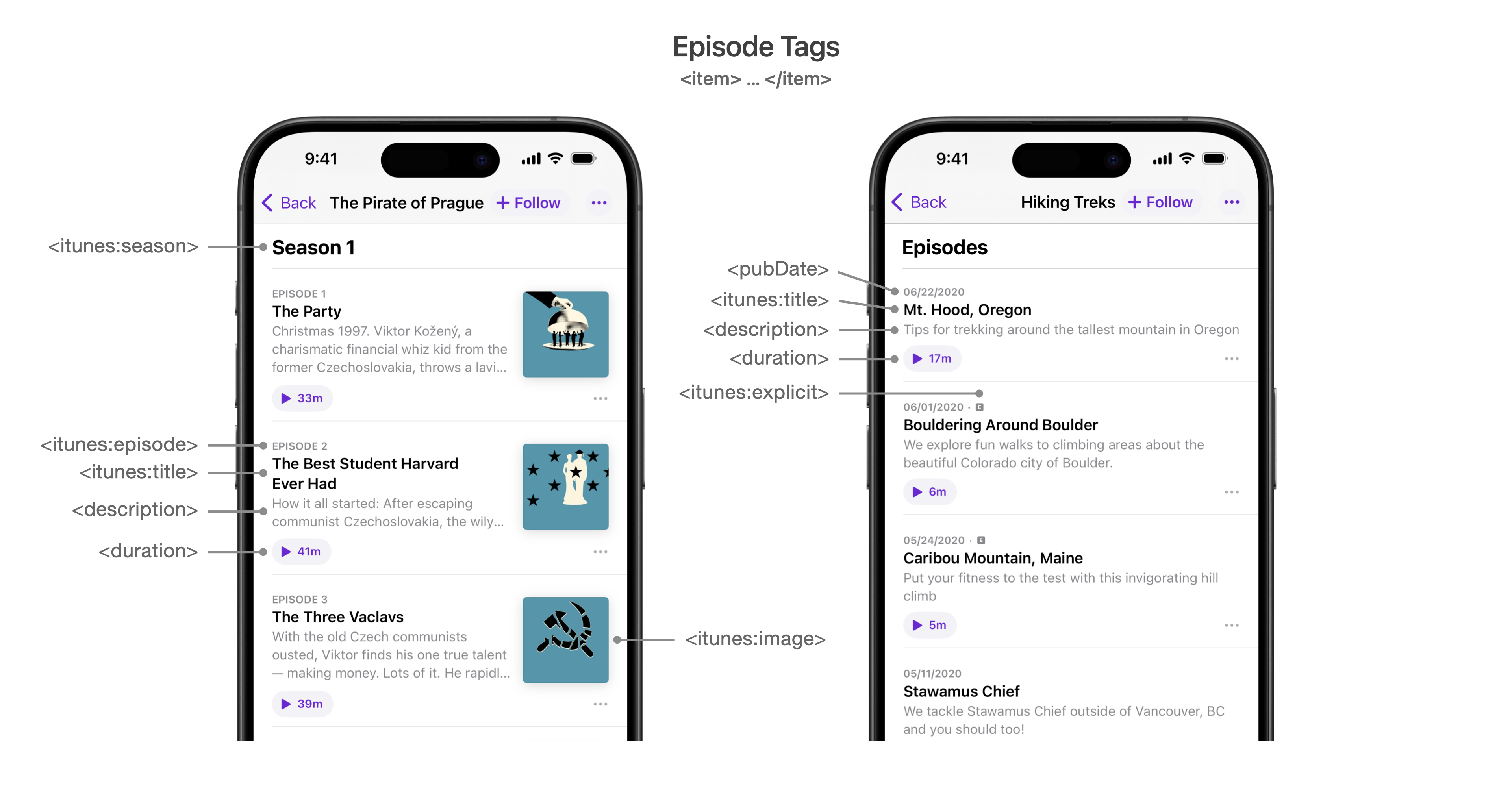
The figure below depicts a “Show view” from the Apple Podcasts app and labels how <item> tags map to episode information. It’s important to note that the <itunes:type> show tag listed above affects how episodes are displayed. Please note: Apple will display the latest 2,000 episodes. Of these, only valid episodes are displayed on the show page.
By default shows are categorized as episodic meaning the most recent episodes will show up first and the <pubDate> of an episode will be displayed. If you specify your show <itunes:type> to be serial, which requires also specifying <itunes:episode> numbers for each episode, then episodes will be listed in sequential order.
In the table below, Required tags must be present in your RSS feed or it won’t pass validation to be listed in Apple Podcasts. Recommended tags aren’t required but are highly encouraged because they provide useful information to users. Situational tags are important in certain circumstances.
Episode tags
Usage
Parent tag
Required tags
<title>
An episode title.
title is a string containing a clear, concise name for your episode.
Don’t specify the episode number or season number in this tag. Instead, specify those details in the appropriate tags ( <itunes:episode>, <itunes:season>). Also, don’t repeat the title of your show within your episode title.
Separating episode and season number from the title makes it possible for Apple to easily index and order content from all shows.
<item>
<enclosure>
The episode content, file size, and file type information.
The <enclosure> tag has three attributes: URL, length, and type:
URL. The URL attribute points to your podcast media file. Specify the full file extension within the URL attribute. This determines whether or not content appears in the podcast directory. Supported file formats include M4A, MP3, MOV, MP4, M4V, and PDF.
Length. The length attribute is the file size in bytes. You can find this information in the properties of your podcast file (on a Mac, choose File > Get Info and refer to the size field).
Type. The type attribute provides the correct category for the type of file you are using. The type values for the supported file formats are: audio/x-m4a, audio/mpeg, video/quicktime, video/mp4, video/x-m4v, and application/pdf.
The episode’s globally unique identifier (GUID) If you uploaded subscriber audio in Apple Podcasts Connect and need to link it to an episode in your RSS feed, you can use the Apple Podcasts Episode ID in the GUID tag. Learn more about how to set up your show for a subscription.
It is very important that each episode have a unique GUID and that it never changes, even if an episode’s metadata, like title or enclosure URL, do change.
Globally unique identifiers (GUID) are case-sensitive strings.
Failing to comply with these guidelines may result in duplicate episodes being shown to listeners, inaccurate data in Analytics, and can cause issues with your podcasts’s listing and chart placement in Apple Podcasts.
<item>
Recommended tags
<pubDate>
The date and time when an episode was released.
Format the date using the RFC 2822 specifications. For example: Sat, 01 Apr 2023 19:00:00 GMT.
<item>
<description>
An episode description.
description is text containing one or more sentences describing your episode to potential listeners. You can specify up to 10,000 characters. You can use rich text formatting and some HTML (<p>, <ol>, <ul>, <li>, <a>) if wrapped in the <CDATA> tag.
To include links in your description or rich HTML, adhere to the following technical guidelines: enclose all portions of your XML that contain embedded HTML in a CDATA section to prevent formatting issues, and to ensure proper link functionality. For example:
You should use this tag when you have a high quality, episode-specific image you would like listeners to see.
Specify your episode artwork using the href attribute in the <itunes:image> tag. RSS Feed Sample.
Depending on their device, listeners see your episode artwork in varying sizes. Therefore, make sure your design is effective at both its original size and at thumbnail size. You should include a title, brand, or source name as part of your episode artwork. To avoid technical issues when you update your episode artwork, be sure to:
Change the artwork file name and URL at the same time.
Confirm your art does not contain an Alpha Channel.
Verify the web server hosting your artwork allows HTTP head requests including Last Modified.
Artwork must be a minimum size of 1400 x 1400 pixels and a maximum size of 3000 x 3000 pixels, in JPEG or PNG format, 72 dpi, with appropriate file extensions (.jpg, .png), and in the RGB colorspace.
Make sure the file type in the URL matches the actual file type of the image file.
<item>
<itunes:explicit>
The episode parental advisory information.
Where the explicit value can be one of the following:
true. If you specify true, indicating the presence of explicit content, Apple Podcasts displays an Explicit parental advisory graphic for your episode.
Episodes containing explicit material aren’t available in some Apple Podcasts territories.
false. If you specify false, indicating that the episode does not contain explicit language or adult content, Apple Podcasts displays a Clean parental advisory graphic for your episode.
<item>
Situational tags
<itunes:title>
An episode title specific for Apple Podcasts.
<itunes:title> is a string containing a clear concise name of your episode on Apple Podcasts.
Don’t specify the episode number or season number in this tag. Instead, specify those details in the appropriate tags ( <itunes:episode>, <itunes:season>). Also, don’t repeat the title of your show within your episode title.
Separating episode and season number from the title makes it possible for Apple to easily index and order content from all shows.
<item>
<itunes:episode>
An episode number.
If all your episodes have numbers and you would like them to be ordered based on them, use this tag for each one.
Episode numbers are optional for <itunes:type>episodic shows, but are mandatory for serial shows.
Where episode is a non-zero integer (1, 2, 3, etc.) representing your episode number.
If you are using your RSS feed to distribute a free version of an episode that is already available to Apple Podcasts paid subscribers, make sure the episode numbers are the same so you don’t have duplicate episodes appear on your show page. Learn more about how to set up your show for a subscription.
<item>
<itunes:season>
The episode season number.
If an episode is within a season use this tag.
Where season is a non-zero integer (1, 2, 3, etc.) representing your season number.
To allow the season feature for shows containing a single season, if only one season exists in the RSS feed, Apple Podcasts doesn’t display a season number. When you add a second season to the RSS feed, Apple Podcasts displays the season numbers.
<item>
<itunes:episodeType>
The episode type.
If an episode is a trailer or bonus content, use this tag.
Where the episodeType value can be one of the following:
Full (default). Specify full when you are submitting the complete content of your show.
Trailer. Specify trailer when you are submitting a short, promotional piece of content that represents a preview of your current show.
Bonus. Specify bonus when you are submitting extra content for your show (for example, behind the scenes information or interviews with the cast) or cross-promotional content for another show.
The rules for using trailer and bonus tags depend on whether the <itunes:season> and <itunes:episode> tags have values:
Trailer:
No season or episode number: a show trailer
A season number and no episode number: a season trailer. (Note: an episode trailer should have a different <guid> than the actual episode)
Episode number and optionally a season number: an episode trailer/teaser, later replaced with the actual episode
Bonus:
No season or episode number: a show bonus
A season number: a season bonus
Episode number and optionally a season number: a bonus episode related to a specific episode
<item>
<podcast:chapters>
A link to an external file containing chapter data for an episode. Chapters must include a timestamp, with optional millisecond resolution, and a title. We recommend that titles should not exceed 45 characters in length.
Time-synced links and images require a timestamp and a valid URL.
Learn more about <podcast> namespace RSS tags on the Github repository.
<item>
<podcast:transcript>
A link to the episode transcript in the Closed Caption format. You should use this tag when you have a valid transcript file available for users to read.
Specify the link to your transcript in the url attribute of the tag.
Apple Podcasts will prefer VTT format over SRT format if multiple instances are included. A valid type attribute is required. Accepted types include text/vtt, application/srt, application/x-subrip.
Learn more about <podcast> namespace RSS tags on the Github repository.
Options for displaying transcripts are available in Apple Podcasts Connect for each show. Learn more.
<item>
<itunes:block>
The episode show or hide status.
If you want an episode removed from the Apple directory, use this tag.
Specifying the <itunes:block> tag with a Yes value prevents that episode from appearing in Apple Podcasts.
For example, you might want to block a specific episode if you know that its content would otherwise cause the entire podcast to be removed from Apple Podcasts.
Specifying any value other than Yes has no effect.
<item>
Apple Podcasts accepts RSS 2.0 tags as well as tags specific to Apple Podcasts and the Podcast namespace.
When you use tags specific to Apple Podcasts or the Podcast namespace, indicated by a leading <itunes> or <podcast> prefix, you must add the following namespace declaration as the second line in your XML:
Without this declaration, Apple Podcasts ignores all tags specific to Apple Podcasts or the Podcast namespace. The declaration is case sensitive, and must be entered as shown. Other declarations may also exist in the same tag.
Use plain text UTF-8 encoding for your feed. Tag values are limited to 255 characters unless otherwise specified above. Don't add leading or trailing spaces to your values.
RSS Feed Sample
The following is an example of a well-formed RSS feed.
Tip: If you are having problems troubleshooting a failed validation, there are external tools such as Cast Feed Validator and Podbase Podcast Validator that may provide more detailed insights.
<?xml version="1.0" encoding="UTF-8"?><rss version="2.0" xmlns:itunes="http://www.itunes.com/dtds/podcast-1.0.dtd" xmlns:content="http://purl.org/rss/1.0/modules/content/"> <channel> <title>Hiking Treks</title> <link>https://www.apple.com/itunes/podcasts/</link> <language>en-us</language> <copyright>© 2020 John Appleseed</copyright> <itunes:author>The Sunset Explorers</itunes:author> <description> Love to get outdoors and discover nature's treasures? Hiking Treks is the show for you. We review hikes and excursions, review outdoor gear and interview a variety of naturalists and adventurers. Look for new episodes each week. </description> <itunes:type>serial</itunes:type> <itunes:image href="https://applehosted.podcasts.apple.com/hiking_treks/artwork.png" /> <itunes:category text="Sports"> <itunes:category text="Wilderness"/> </itunes:category> <itunes:explicit>false</itunes:explicit> <item> <itunes:episodeType>trailer</itunes:episodeType> <itunes:title>Hiking Treks Trailer</itunes:title> <description> <![CDATA[The Sunset Explorers share tips, techniques and recommendations for great hikes and adventures around the United States. Listen on <a href="https://www.apple.com/itunes/podcasts/">Apple Podcasts</a>.]]> </description> <enclosure length="498537" type="audio/mpeg" url="http://example.com/podcasts/everything/AllAboutEverythingEpisode4.mp3" /> <guid>D03EEC9B-B1B4-475B-92C8-54F853FA2A22</guid> <pubDate>Tue, 8 Jan 2019 01:15:00 GMT</pubDate> <itunes:duration>1079</itunes:duration> <itunes:explicit>false</itunes:explicit> </item> <item> <itunes:episodeType>full</itunes:episodeType> <itunes:episode>4</itunes:episode> <itunes:season>2</itunes:season> <title>S02 EP04 Mt. Hood, Oregon</title> <description> Tips for trekking around the tallest mountain in Oregon </description> <enclosure length="8727310" type="audio/x-m4a" url="http://example.com/podcasts/everything/mthood.m4a" /> <guid>22BCFEBF-44FB-4A19-8229-7AC678629F57</guid> <pubDate>Tue, 07 May 2019 12:00:00 GMT</pubDate> <itunes:duration>1024</itunes:duration> <itunes:explicit>false</itunes:explicit> </item> <item> <itunes:episodeType>full</itunes:episodeType> <itunes:episode>3</itunes:episode> <itunes:season>2</itunes:season> <title>S02 EP03 Bouldering Around Boulder</title> <description> We explore fun walks to climbing areas about the beautiful Colorado city of Boulder. </description> <itunes:image href="http://example.com/podcasts/everything/AllAboutEverything/Episode2.jpg" /> <link>href="http://example.com/podcasts/everything/</link> <enclosure length="5650889" type="video/mp4" url="http://example.com/podcasts/boulder.mp4" /> <guid>BE486CAA-B3D5-4FB0-8298-EFEBE71C5982</guid> <pubDate>Tue, 30 Apr 2019 13:00:00 EST</pubDate> <itunes:duration>3627</itunes:duration> <itunes:explicit>false</itunes:explicit> </item> <item> <itunes:episodeType>full</itunes:episodeType> <itunes:episode>2</itunes:episode> <itunes:season>2</itunes:season> <title>S02 EP02 Caribou Mountain, Maine</title> <description> Put your fitness to the test with this invigorating hill climb. </description> <itunes:image href="http://example.com/podcasts/everything/AllAboutEverything/Episode3.jpg" /> <enclosure length="5650889" type="audio/x-m4v" url="http://example.com/podcasts/everything/caribou.m4v" /> <guid>142FAFE9-B1DF-4F6D-BAA8-79BDBAF653A9</guid> <pubDate>Tue, 23 May 2019 02:00:00 -0700</pubDate> <itunes:duration>2434</itunes:duration> <itunes:explicit>false</itunes:explicit> </item> <item> <itunes:episodeType>full</itunes:episodeType> <itunes:episode>1</itunes:episode> <itunes:season>2</itunes:season> <title>S02 EP01 Stawamus Chief</title> <description> We tackle Stawamus Chief outside of Vancouver, BC and you should too! </description> <enclosure length="498537" type="audio/mpeg" url="http://example.com/podcasts/everything/AllAboutEverythingEpisode4.mp3" /> <guid>5F1DBAEB-3327-49FB-ACB3-DB0158A1D0A3</guid> <pubDate>2019-02-16T07:00:00.000Z</pubDate> <itunes:duration>13:24</itunes:duration> <itunes:explicit>false</itunes:explicit> </item> <item> <itunes:episodeType>full</itunes:episodeType> <itunes:episode>4</itunes:episode> <itunes:season>1</itunes:season> <title>S01 EP04 Kuliouou Ridge Trail</title> <description> Oahu, Hawaii, has some picturesque hikes and this is one of the best! </description> <enclosure length="498537" type="audio/mpeg" url="http://example.com/podcasts/everything/AllAboutEverythingEpisode4.mp3" /> <guid>B5FCEB80-317C-4CD0-A84B-807065B43FB9</guid> <pubDate>Tue, 27 Nov 2018 01:15:00 +0000</pubDate> <itunes:duration>929</itunes:duration> <itunes:explicit>false</itunes:explicit> </item> <item> <itunes:episodeType>full</itunes:episodeType> <itunes:episode>3</itunes:episode> <itunes:season>1</itunes:season> <title>S01 EP03 Blood Mountain Loop</title> <description> Hiking the Appalachian Trail and Freeman Trail in Georgia </description> <enclosure length="498537" type="audio/mpeg" url="http://example.com/podcasts/everything/AllAboutEverythingEpisode4.mp3" /> <guid>F0C5D763-ED85-4449-9C09-81FEBDF6F126</guid> <pubDate>Tue, 23 Oct 2018 01:15:00 +0000</pubDate> <itunes:duration>1440</itunes:duration> <itunes:explicit>false</itunes:explicit> </item> <item> <itunes:episodeType>full</itunes:episodeType> <itunes:episode>2</itunes:episode> <itunes:season>1</itunes:season> <title>S01 EP02 Garden of the Gods Wilderness</title> <description> Wilderness Area Garden of the Gods in Illinois is a delightful spot for an extended hike. </description> <enclosure length="498537" type="audio/mpeg" url="http://example.com/podcasts/everything/AllAboutEverythingEpisode4.mp3" /> <guid>821DD0B2-571D-4DFD-8E11-556E8C1EFE6A</guid> <pubDate>Tue, 18 Sep 2018 01:15:00 +0000</pubDate> <itunes:duration>839</itunes:duration> <itunes:explicit>false</itunes:explicit> </item> <item> <itunes:episodeType>full</itunes:episodeType> <itunes:episode>1</itunes:episode> <itunes:season>1</itunes:season> <title>S01 EP01 Upper Priest Lake Trail to Continental Creek Trail</title> <description> We check out this powerfully scenic hike following the river in the Idaho Panhandle National Forests. </description> <enclosure length="498537" type="audio/mpeg" url="http://example.com/podcasts/everything/AllAboutEverythingEpisode4.mp3" /> <guid>EABDA7EE-1AC6-4B60-9E11-6B3F30B72F87</guid> <pubDate>Tue, 14 Aug 2018 01:15:00 +0000</pubDate> <itunes:duration>1399</itunes:duration> <itunes:explicit>false</itunes:explicit> </item> </channel></rss>