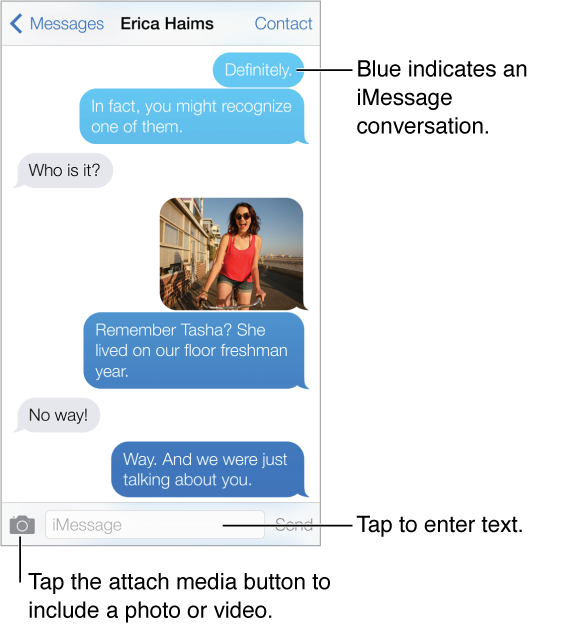
Start a text conversation. Tap  , then enter a phone number or email address, or tap
  and choose a contact.
An alert badge  appears if a message can’t be sent. Tap the alert in a conversation to try sending the message again.
Resume a conversation. Tap the conversation in the Messages list.
Use picture characters. Go to Settings > General > Keyboard > Keyboards > Add New Keyboard, then tap Emoji to make that keyboard available. When you type a message, tap  to change to the Emoji keyboard. See Special input methods.
See what time a message was sent or received. Drag any bubble to the left.
Make a FaceTime call to the person you’re texting. Tap Contact at the top of the screen, then tap  .
.
See a person’s contact info. Tap Contact at the top of the screen, then tap  . Tap info items to perform actions, such as making a FaceTime call.
See earlier messages in the conversation. Tap the status bar to scroll to the top. Tap Load Earlier Messages, if necessary.
Send messages to a group. Tap , then enter multiple recipients.
Block unwanted messages. On a contact card, tap Block this Caller. You can see someone’s contact card while viewing a message by tapping Contact, then tap . You can also block callers in Settings > FaceTime > Blocked. You will not receive FaceTime calls, or text messages from blocked callers. For more information about blocking calls, see support.apple.com/kb/HT5845.