WARNING: For important information about navigating safely and avoiding distraction while driving, see Important safety information.
Important: Maps, directions, Flyover, and location-based apps depend on data services. These data services are subject to change and may not be available in all areas, resulting in maps, directions, Flyover, or location-based information that may be unavailable, inaccurate, or incomplete. Some Maps features require Location Services. See Privacy.
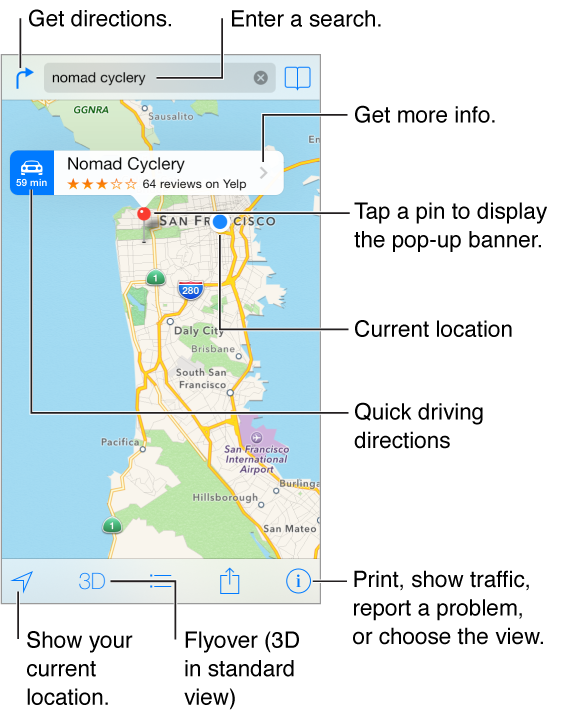
Move around Maps by dragging the screen. To face a different direction, rotate with two fingers. To return to north, tap the compass  in the upper-right.
Zoom in or out. Double-tap with one finger to zoom in and tap with two fingers to zoom out—or just pinch and stretch. The scale appears in the upper-left while zooming. To change how distance is shown (miles or kilometers), go to Settings > Maps.
You can search for a location in different ways:
Intersection (“8th and market”)
Area (“greenwich village”)
Landmark (“guggenheim”)
Zip code
Business (“movies,” “restaurants san francisco ca,” “apple inc new york”)
Or if Maps guesses where you’re headed while you’re entering a search, tap that location in the list below the search field.
Find the location of a contact, or of a bookmarked or recent search. Tap  .
.
Choose your view. Tap  , then choose Standard, Hybrid, or Satellite.
Manually mark a location. Touch and hold the map until the dropped pin appears.