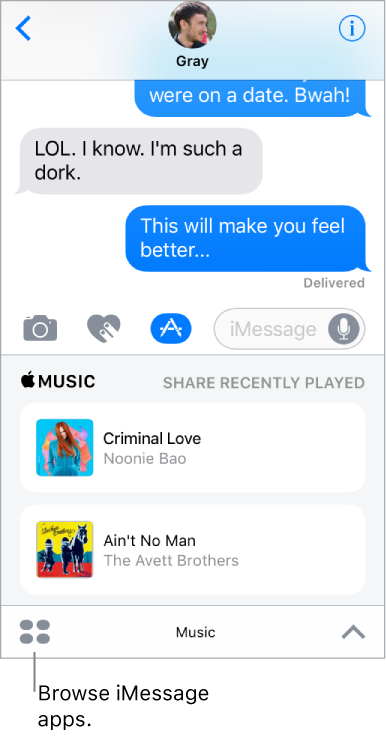
With iMessage apps, you can decorate a conversation with stickers, schedule dinner and a movie, send payments, share a song, and more—all without leaving Messages. Expand your options by downloading more iMessage apps from the App Store.
Download iMessage apps. Tap  , tap
, tap  , then tap Store.
Use an iMessage app. Tap , then swipe left or right to browse. Tap an app to add it to the conversation. Add a comment if you want, then tap  to send or
  to cancel.
Decorate with stickers. Tap to open the app drawer, then swipe left or right to navigate to a stickers app. Touch and hold a sticker, then drag it anywhere in the conversation. Before you release, you can:
Adjust the angle: Rotate a second finger around the finger dragging the sticker.
Adjust the size: Move a second finger closer to or away from the finger dragging the sticker.
You can place the sticker on top of a message bubble, put it on another sticker, or even dress up a photo.
See text covered by a sticker. Double tap the sticker.
See sticker details. Touch and hold a sticker, then tap Sticker Details. You can:
See who sent the sticker.
View which iMessage app was used to send the sticker.
Delete the sticker—swipe left, then tap Delete.
Manage iMessage apps. Tap , tap , tap Store, then tap Manage. You can:
Automatically add iMessage apps to the app drawer.
Turn iMessage apps on or off.
Remove an iMessage app. Tap , tap , touch and hold an app until you see the app icons jiggle, then tap  in the top-right corner. When you finish, press the Home button.