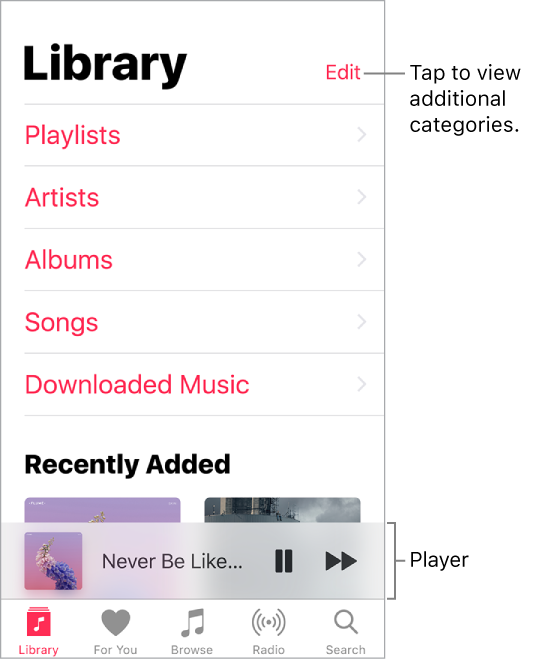
The Library tab includes any added or downloaded music from Apple Music, music and music videos synced to iPod touch, iTunes purchases, and the music you make available through iTunes Match.
Browse and play your music. Tap a category, such as Playlists or Albums, touch and hold the album art, then tap  . Tap the player to show the Now Playing screen.
Sort your music. Tap Playlists, Albums, or Songs, then tap Sort.
View more categories. In the Library tab, tap Edit, then select additional categories.
View only music stored on iPod touch. In the Library tab, tap Downloaded Music.
Play music shared on a nearby computer. If a computer on your network shares music through iTunes Home Sharing, go to Settings > Music, then tap Sign In under Home Sharing. Return to the Music app, tap the Library tab, tap Home Sharing, then choose a shared library.
Remove Apple Music tracks from iPod touch. Go to Settings > Music, then turn off iCloud Music Library. The tracks are removed from iPod touch, but remain in iCloud. Music you purchased or synced, and music identified by iTunes Match that you downloaded, also remains.