Siri lets you speak to your iPod touch to send messages, schedule meetings, make FaceTime calls, and much more. Siri understands natural speech, so you don’t have to learn special commands or keywords. Ask Siri anything, from “set the timer for 3 minutes” to “what movies are showing tonight?” Open apps, and turn features like Airplane Mode, Bluetooth, Do Not Disturb, and VoiceOver on or off. Siri is great for keeping you updated with the latest sports info, helping you decide on a restaurant, and searching the iTunes Store or App Store.
Note: To use Siri, iPod touch must be connected to the Internet. See Connect to the Internet.
Summon Siri. Press and hold the Home button, release the button, then make your request. Or, instead of waiting for Siri to notice that you’ve stopped talking, continue to hold down the Home button while you speak, then release it when you finish.
If you’re using a headset, you can use the center or call button in place of the Home button.
Hey Siri. You can use Siri without pressing the Home button. Just say “Hey Siri,” then make your request. (For some models, Hey Siri is only recognized when iPod touch is connected to a power source.)
To turn Hey Siri on or off, go to Settings > Siri > Allow “Hey Siri.”
Get Siri hints. Ask Siri “what can you do,” or tap  .
.
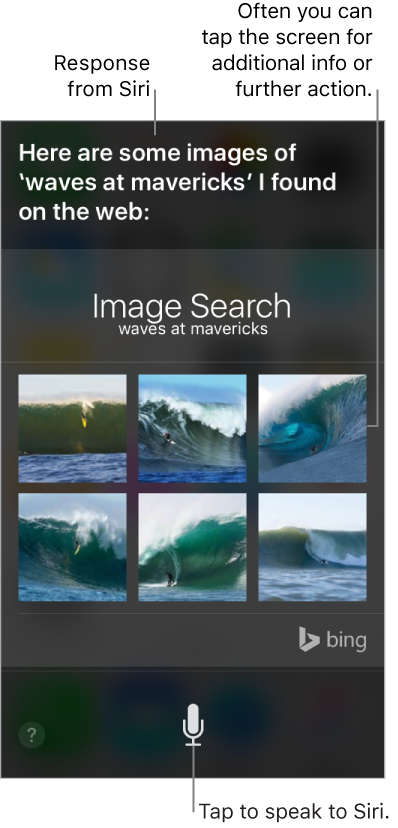
The onscreen response from Siri often includes information or images that you can tap for additional detail, or to perform some other action.
Change the voice gender for Siri. Go to Settings > Siri > Siri Voice (may not be available in all areas).
Adjust the volume for Siri. Use the volume buttons while you’re interacting with Siri. For voice feedback options, go to Settings > Siri > Voice Feedback.
Prevent access to Siri when iPod touch is locked. Go to Settings > Passcode. You can also disable Siri by turning on restrictions. See Set Restrictions.