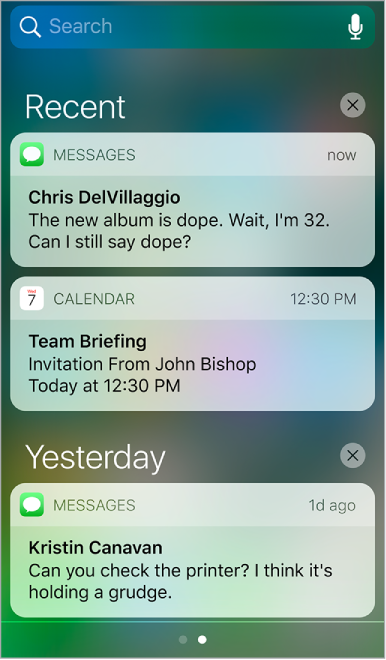
Notifications help you keep track of what’s new. They let you know if you missed a FaceTime call, if the date of an event moved, and more. You can customize your notifications so you just see what’s important to you.
Respond when iPod touch is locked. Swipe the notification left.
Open the app to respond. Swipe the notification right.
Respond without leaving the current app. Pull the notification down when it appears at the top of your screen.
Note: This feature works with text and email messages, calendar invitations, and more.
Open Notification Center to view all your notifications at once. Swipe down from the top edge of any screen.
Clear a notification. Swipe the notification left. To clear a group of notifications, tap  .
.
Set notification preferences. Go to Settings > Notifications. Tap an app to set its notification options. For example, choose whether to allow notifications from a specific app or turn the sound on a notification on or off.
Choose whether to show notifications on the Lock screen. Go to Settings > Passcode, then choose whether to allow access when locked.
Silence all your notifications. Go to Settings > Do Not Disturb. You can also use Siri to turn Do Not Disturb on or off. Say “Turn on Do Not Disturb” or “Turn off Do Not Disturb.”
Close Notification Center. Swipe up, or press the Home button.