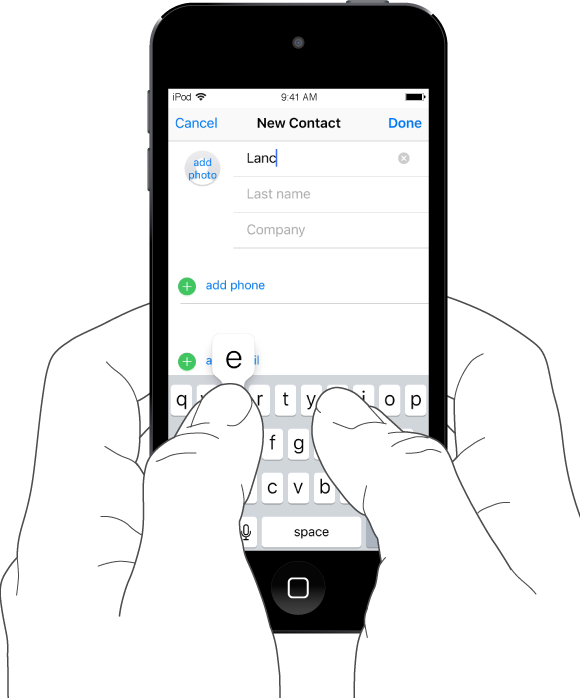
Tap a text field to see the onscreen keyboard, then tap letters to type. If you touch the wrong key, you can slide your finger to the correct key. The letter isn’t entered until you release your finger from the key.
Type uppercase letters. Tap Shift to type uppercase, or touch the Shift key and slide to a letter.
Turn on Caps Lock. Double-tap Shift.
Enter numbers, punctuation, or symbols. Tap the Number key  or the Symbol key
  .
.
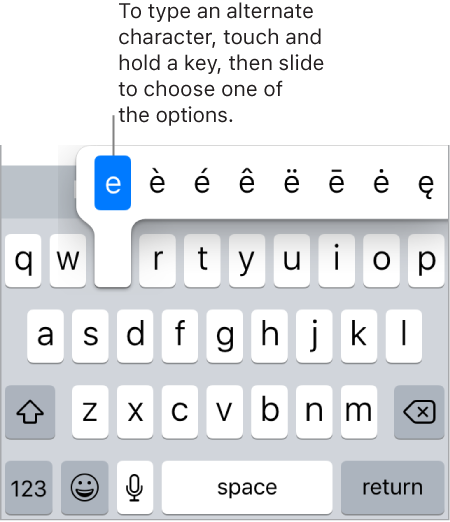
Enter accented letters or other alternate characters. Touch and hold a key, then slide to choose one of the options.
Quickly end a sentence with a period and a space. Double-tap the Space bar.
Correct spelling. If you see a word underlined in red, tap it to see suggested corrections. If the word you want doesn’t appear, type the correction.
If you see a word underlined in red, tap it to see suggested corrections. If the word you want doesn’t appear, type the correction.
Set options for typing or add keyboards. Go to Settings > General > Keyboard.
You can also use an Apple Wireless Keyboard to enter text. See Use an Apple Wireless Keyboard. To dictate instead of typing, see Dictate.
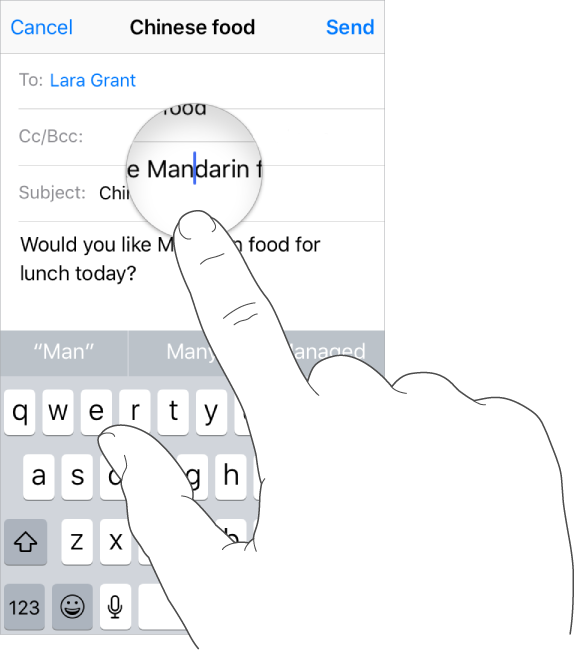
Revise text. Touch and hold the text to show the magnifying glass, then drag to position the insertion point.
Select text. Tap the insertion point to display the selection options. Or double-tap a word to select it. Drag the grab points to select more or less text. In read-only documents, such as webpages, touch and hold to select a word.
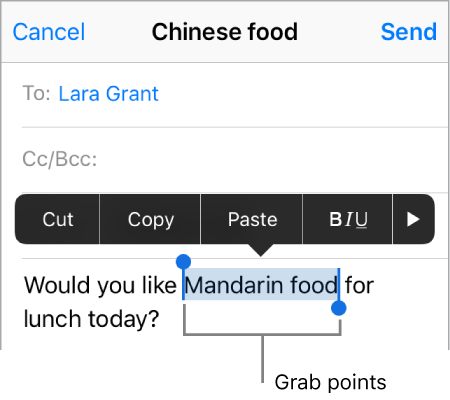
You can cut, copy, or paste over selected text. With Universal Clipboard, you can also cut or copy something on one Apple device, and paste it on another.
With some apps, you can also get bold, italic, or underlined text (tap B/I/U); see suggestions in Look Up; or have iPod touch suggest an alternative. Tap  to see all the options. If you choose Look Up, you see suggested information from the web and different apps. To turn off Suggestions in Look Up, go to Settings > General > Spotlight Search.
Undo the last edit. Shake iPod touch, then tap Undo.