Set an alarm. Tap Alarm, then tap  . Set the time and other options, then give the alarm a name (like “Water the plants”).
With the Clock app, you can set an alarm that plays a sound at a specific time. You can also set a bedtime schedule that reminds you when to go to sleep and plays a sound when it’s time to wake up.
Ask Siri. Say something like:
“Wake me up tomorrow at 7 a.m.”
“Set an alarm for 9 a.m. every Friday”
“Turn off all my alarms”
Set an alarm. Tap Alarm, then tap . Set the time and other options, then give the alarm a name (like “Water the plants”).
Change an alarm. Tap Edit, then tap the alarm.
Delete an alarm. Swipe left on the alarm, then tap Delete.
Set a bedtime schedule. Tap Bedtime, then follow the instructions to set your sleep reminder and wake-up alarm. After you’ve done the initial setup, you can slide  and
and  to adjust your sleep and wake times. Tap Options to set the alarm days, wake-up sound, and volume. To turn Bedtime reminders off, drag the screen down to reveal the Bedtime switch.
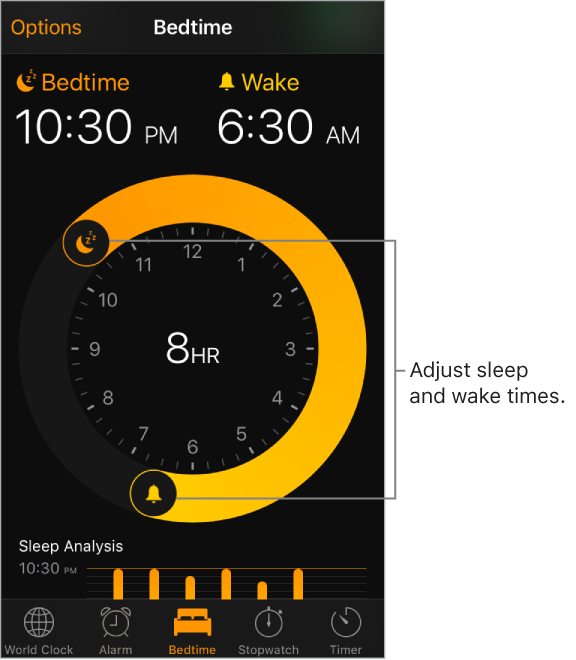
See your sleep history. The Sleep Analysis portion of the Bedtime tab shows your history for the past several days, based on your use of iPod touch during those hours. Your sleep history is automatically provided to Health, too, where you can view more data.
Fall asleep to music or a podcast. Tap Timer, tap When Timer Ends, then choose Stop Playing at the bottom.