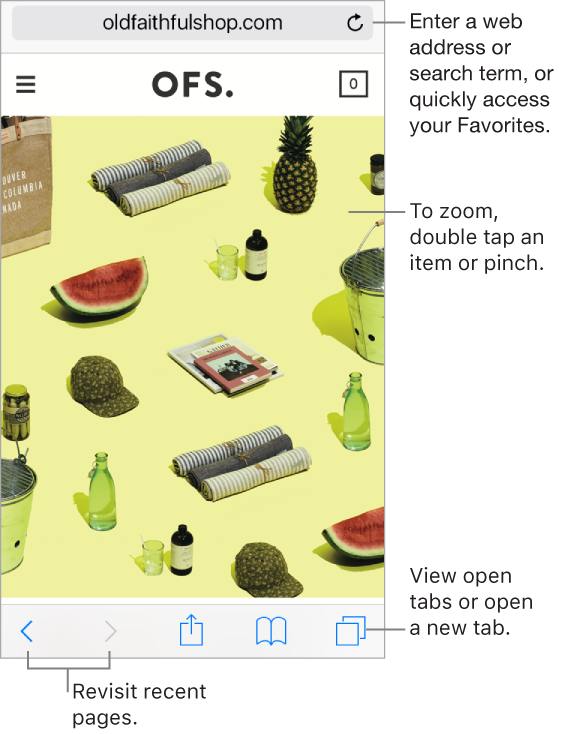
With Safari on iPod touch, you can browse the web, add webpages to your reading list to read later, and add page icons to the Home screen for quick access. If you sign in to iCloud with the same Apple ID on all your devices, you can see pages you have open on other devices, and keep your bookmarks, history, and reading list up to date on your other devices.
Look before you leap. To see the URL of a link before you go there, touch and hold the link.
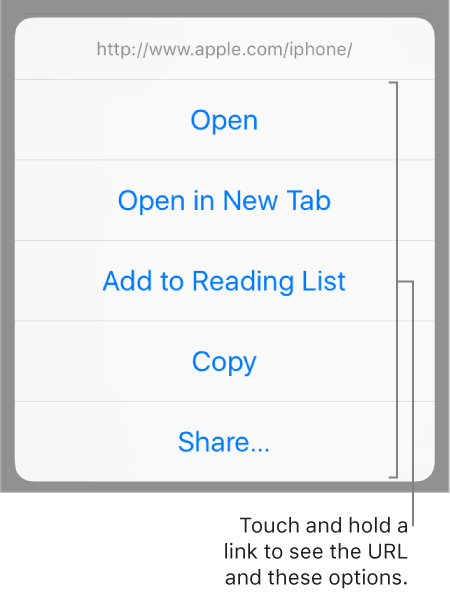
Open a link in a new tab. Touch and hold the link, then tap Open in New Tab. To stay on the current tab whenever you open a link in a new tab, go to Settings > Safari > Open Links, then tap In Background.
Browse open tabs. Tap  . To close a tab, tap
  in the upper-left corner, or swipe the tab to the left.
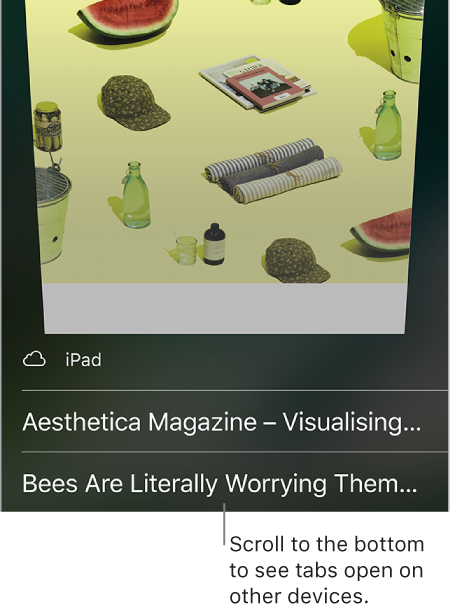
View tabs that are open on your other devices. If you sign in to iCloud with the same Apple ID on all your devices, and you turn on Safari in Settings > [your name] > iCloud on iPod touch, you can view tabs that are open on your other devices. Tap , then scroll to the list at the bottom. To close a tab, swipe left, then tap Close.
View recently closed tabs. Touch and hold  .
.
Get back to the top. Tap the top edge of the screen to quickly return to the top of a long page.
See more of the page. Turn iPod touch to landscape orientation.
Refresh the page. Tap  next to the address in the search field.
See a tab’s history. Touch and hold  or
or  .
.
View the desktop version of a site. To see the full desktop version of a site instead of the mobile version, tap  , then tap Request Desktop Site.
Block pop-ups. Go to Settings > Safari, then turn Block Pop-ups on or off.