When you create a calendar, iPhoto automatically assigns a layout to each page and places photos on the pages. You can change the layout of a calendar page at any time.
The calendar theme you use determines the available page layouts. Page layouts can include one or more photos, overlapping photos, text, and more.
Click the calendar project in the Source list.
Double-click the page on which you want to change the layout.
iPhoto updates to show the page spread, with the page selected.
Click the Layout button in the toolbar.
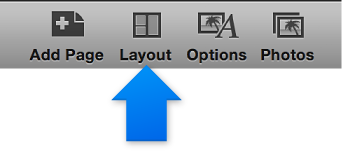
The page layout tools appear in the Layout pane.
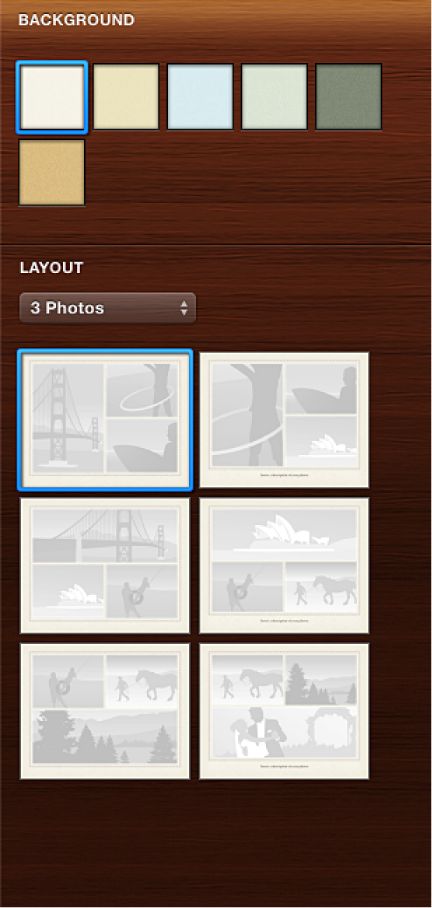
In the Layout pop-up menu, choose a type of page layout (a number of photos per page, a text page, and more), and then select one of the page layouts that appear.
When you change a page layout, iPhoto automatically places photos on pages based on the photo’s sizes and orientation (horizontal or vertical). You can easily turn the auto-layout feature on or off.
Click the calendar project in the Source list.
Click the Options button in the toolbar.
Click the Calendar Settings button.
In the window that appears, select or deselect the “Auto-Layout pages” checkbox.