If you have an iCloud account, you can subscribe to shared photo streams that your family and friends invite you to. After you accept, you can view the photos and video clips on all your Apple devices, including your Mac. You can also mark the items you like and comment on them. You can post items to a shared photo stream if the creator of the stream has turned on the Subscribers Can Post feature. You can unsubscribe from a shared photo stream at any time. If you want to use an item in a shared photo stream that you subscribe to, you can import it into your iPhoto library and then make changes to it as needed.
To subscribe to a shared photo stream, all you have to do is accept the invitation. Invitations to a shared photo stream are sent by email and notifications.
Select iCloud in the Source list.
Move the pointer over the shared photo stream’s key photo, and then click the Accept button.
If you don’t want to subscribe to the shared photo stream, click the Decline button.
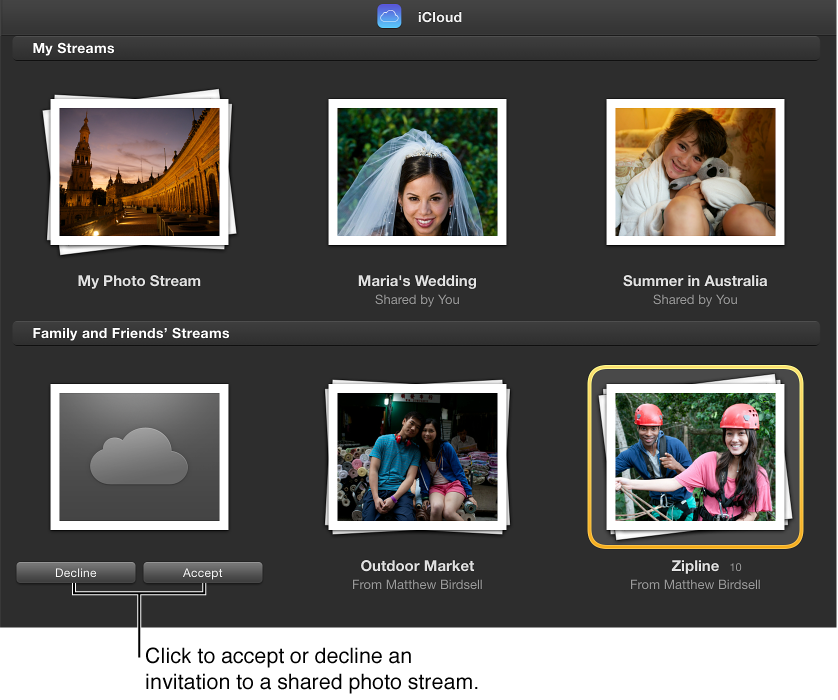
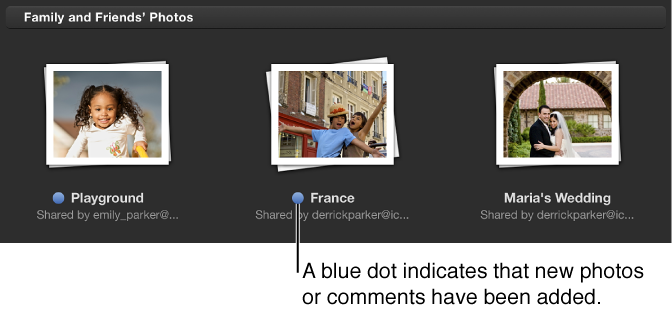
Shared photo streams that you subscribe to appear in the lower portion of the iCloud view. A blue dot next to the shared photo stream’s name indicates that new photos, video clips, or new comments have been added. In addition, a number appears above the iPhoto icon in the Dock to indicate that new items and comments have been shared with you.
If you want to unsubscribe from a shared photo stream, all you have to do is delete it.
WARNING: When you unsubscribe from a shared photo stream, the photos and video clips contained in the shared stream are immediately deleted from all your devices. If you want to keep some of the items, you should import them into your iPhoto library first.
Select iCloud in the Source list.
Select the photo stream you want to unsubscribe from, and press Command-Delete.
Select iCloud in the Source list.
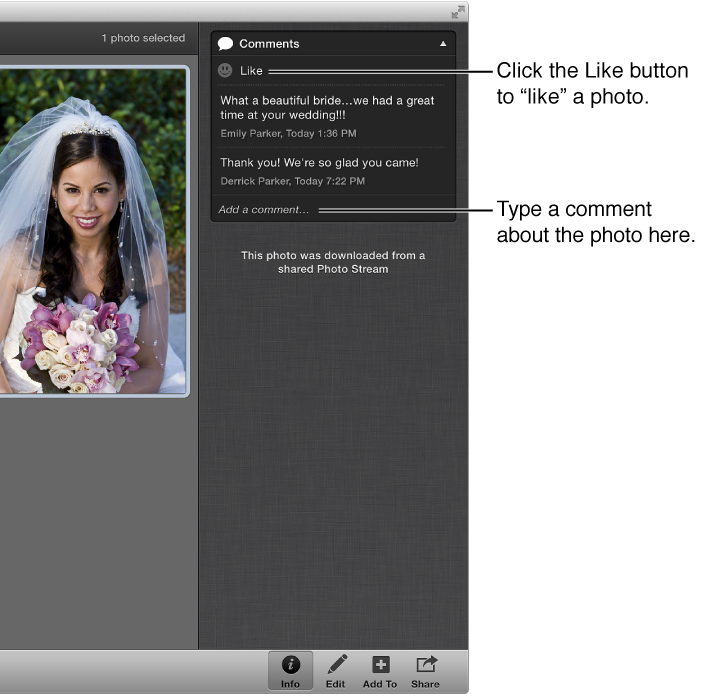
Double-click the shared photo stream containing the photo or video you want to like or comment on.
In the toolbar, click the Info button.
In the Info pane, do either of the following:
To like a photo or video: Click the Like button (with a smiley face).
To add a comment to a photo or video: Click the “Add a comment” button, type the comment in the field, and click Post.

When you like or comment on an item in a shared stream, a notification is sent to all the Apple devices of the photo stream’s creator and subscribers. You can delete comments you added to an item by placing the pointer over the comment and clicking the Delete button that appears.
Photos and video clips in shared photo streams are view-only. However, you can import shared items into your iPhoto library, apply edits, share the updated items, and add them to your slideshows and books.
In the Source list, select iCloud.
Double-click the shared stream containing the photos you want to save.
Select the photos or video clips.
Import items into your library by dragging them to Events in the Source list.