You can add, delete, or reorder book pages.
You can insert new pages anywhere in a book, except between the outside cover page and the inside cover.
Books require an even number of pages. If adding a page creates an odd number of pages, iPhoto automatically adds a blank page to or deletes a blank page from your book to keep the page count at an even number.
Click the book name in the Source list.
The book pages appear in All Pages view.
Select the page you want the new page to follow.
Note: You can also add a page while viewing a page spread.
Click the Add Page button in the toolbar.
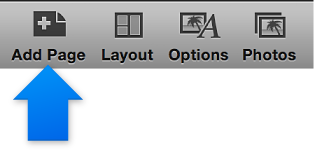
iPhoto adds a new page after the page you selected.
Books require an even number of pages. If deleting a page creates an odd number of pages, iPhoto automatically adds a blank page to or deletes a blank page from your book to keep the page count at an even number.
Click the book name in the Source list.
The book pages appear in All Pages view.
Press the Control key while you click the page that you want to delete, and then choose Remove Page from the shortcut menu.
Note: You can also delete a page while viewing a page spread.
A message appears asking if you want to delete the page.
Click Yes.
Click the book name in the Source list.
The book pages appear in All Pages view.
Select a page and drag it to its new location.